
To protect Outlook OneDrive from phishing, treat every unexpected file-share email, sign-in prompt, password warning, and device-code request as something to verify before you click. Use trusted websites or apps, check the sender and full link, turn on multi-factor authentication, learn how MFA phishing works, review recent sign-ins, and report phishing in Outlook when a message looks suspicious. This article explains practical, non-technical steps for Outlook, OneDrive, and Microsoft 365 users in the United States.
Online safety note: This guide is for educational purposes only. If you manage a workplace or school Microsoft 365 environment, also follow your organization’s IT security policies and official Microsoft/CISA guidance.
- Why Outlook and OneDrive Need Extra Phishing Protection
- How an Outlook or OneDrive Phishing Scam Usually Starts
- Step 1: Slow Down Before Opening File Links
- Step 2: Verify the Sender, Domain, and File Context
- Step 3: Protect OneDrive File Links and Sharing Permissions
- Step 4: Use MFA Carefully and Understand MFA Phishing
- Step 5: Use Microsoft 365 Phishing Protection Features
- Step 6: Report Phishing in Outlook and Delete the Message
- Step 7: Review Account Activity, Apps, and Recovery Options
- Step 8: Build Safer Habits for Students, Families, and Small Businesses
- Step 9: What To Do If You Think You Already Clicked
- Quick Checklist: A Safer Outlook and OneDrive Routine
- Source List –
- Conclusion
- FAQs –
Why Outlook and OneDrive Need Extra Phishing Protection
Outlook and OneDrive are useful because they connect email, files, sign-ins, calendars, and collaboration in one place. That convenience is also why attackers like them. A single convincing message can lead a user toward a fake file, a fake sign-in page, or a request that looks like normal account activity. A good safety plan does not mean you stop using these tools. It means you learn how to pause, verify, and use the built-in protections correctly.
The topic matters even more because the FBI IC3 warning about Kali365 describes a phishing-as-a-service kit that can target Microsoft 365 environments by abusing OAuth token workflows. For everyday users, the lesson is simple: a message can be dangerous even if it does not ask for your password in the old-fashioned way. Some attacks try to make you approve access or enter a code that gives an attacker access to email, files, or cloud services.
That is why this guide focuses on practical defense. You will learn how to handle a possible OneDrive phishing scam, how to use Microsoft 365 phishing protection wisely, how to report suspicious email, and how to avoid risky sign-in prompts. The goal is not fear. The goal is calm, repeatable habits that protect your accounts before a small mistake becomes a serious problem.
How an Outlook or OneDrive Phishing Scam Usually Starts
Most phishing attempts begin with a message that feels familiar. It might say someone shared a document, a mailbox is full, a password is expiring, or an invoice is waiting in OneDrive. The message may use urgent language, a company-like display name, or a button that says “Open file,” “Review document,” or “Verify account.” According to the FTC phishing guidance, scammers often pretend to be trusted organizations and try to get people to click a link or share personal information.
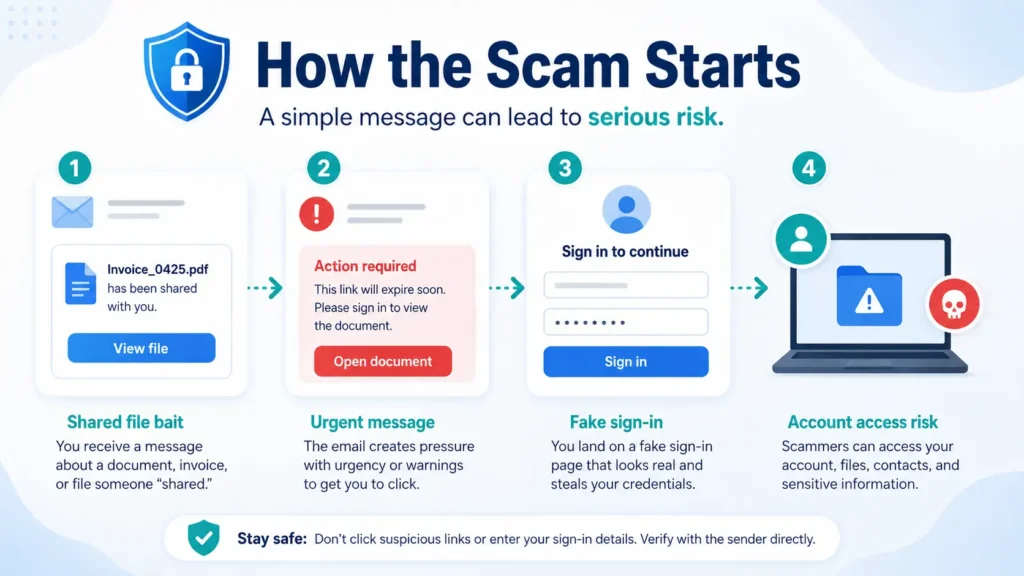
A safe reader checks the message before reacting. Ask yourself: Was I expecting this file? Do I know the sender? Does the email address match the claimed organization? Does the link domain make sense? Is the message trying to scare me into rushing? These small questions can block a large number of phishing attempts.
A dangerous message does not always look messy. Some phishing emails are well-written and use clean design. Some use real product names. Some copy the general look of a file-sharing notification without using a real official page. That is why a professional-looking message should still be verified. A clean layout is not proof that a message is safe.
Step 1: Slow Down Before Opening File Links
The first habit is simple: slow down. If an email says a file is urgent, your account will close, your storage is full, or your team needs your approval immediately, do not rush. Attackers use pressure because rushed users skip checks. A careful delay of ten seconds can be enough to notice a suspicious sender, a strange domain, or a button that does not match the message.
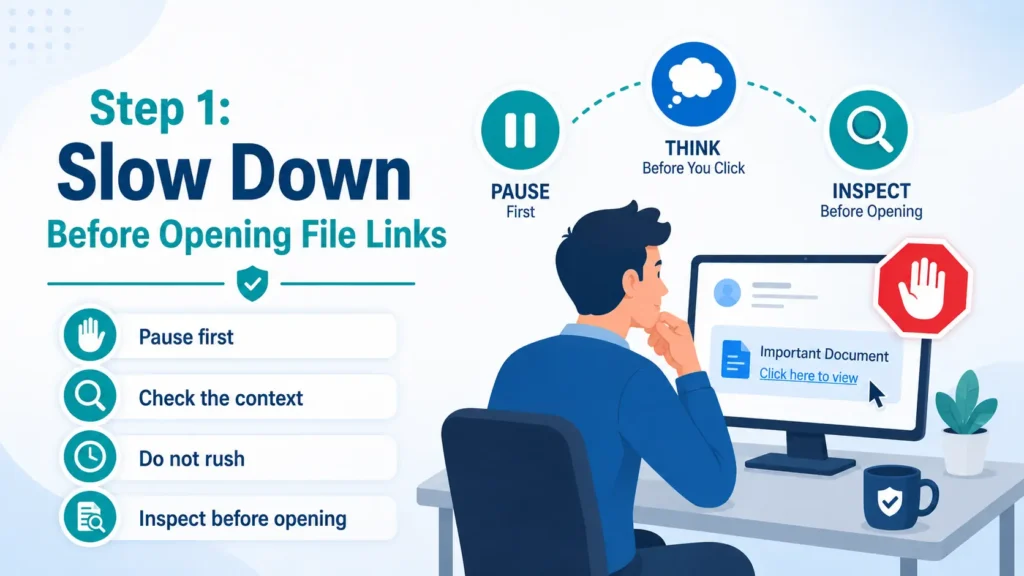
Before opening a OneDrive link, confirm the context. If the file is supposedly from a coworker, classmate, client, or family member, verify through another channel when the request feels unexpected. A quick message such as “Did you send me this file?” can prevent a bad click. This is especially important for invoices, shared folders, tax documents, school forms, job documents, and password-protected files.
When in doubt, go directly to the official service instead of using the email button. Open your browser, type the known website yourself, or use the official app. If the file is real and shared with your account, it should usually be visible after you sign in safely through the trusted route. This habit protects you from fake buttons that lead to credential-stealing pages.
- Clicked Phishing Link What to Do: 10 Recovery Steps
- How to Spot Phishing Emails: Red Flags & Examples
- FBI Alert Outlook OneDrive: Phishing Scam Explained
- What Is Phishing? Meaning, Examples & Safety Tips
Step 2: Verify the Sender, Domain, and File Context
A sender display name can be misleading. The name may say “Microsoft Support,” “OneDrive Team,” “IT Help Desk,” or the name of someone you know. The real clue is the email address and domain behind that name. Look for misspellings, extra numbers, unusual hyphens, odd country domains, or generic email accounts pretending to represent a company.
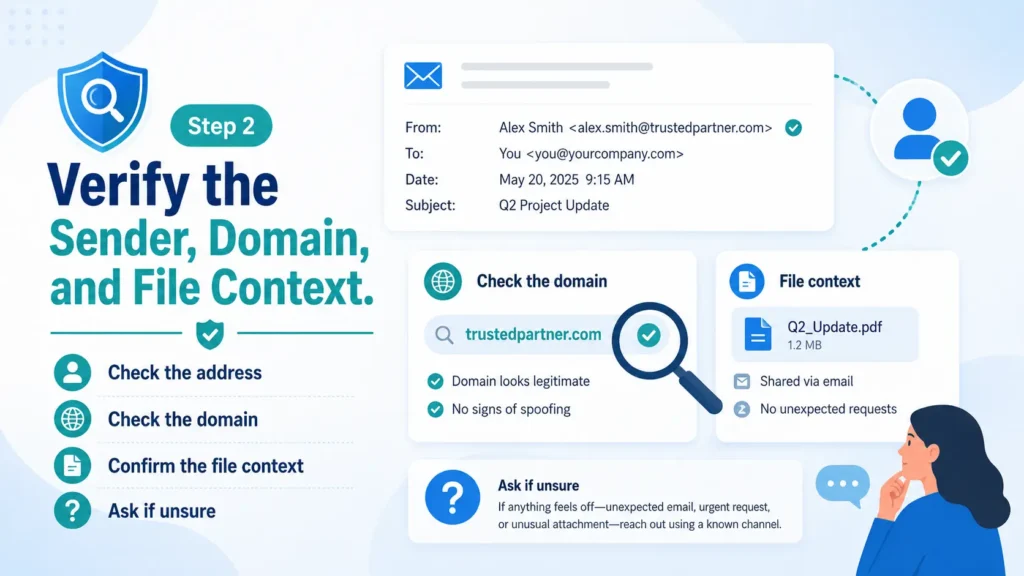
Also check the file context. A safe file-share message usually makes sense: you know the sender, you were expecting the file, and the message does not pressure you into entering sensitive information. A suspicious message often lacks context: “Please review attached file,” “Your storage is suspended,” or “Sign in to keep access.” If it feels disconnected from your real work or personal life, verify before opening.
Microsoft’s own guidance on how to protect yourself from phishing emphasizes checking suspicious messages and avoiding unsafe links or attachments. For Outlook and OneDrive users, this means the safest click is often no click at all until you confirm the request.
Step 3: Protect OneDrive File Links and Sharing Permissions
A OneDrive phishing scam often works because people are used to opening shared documents quickly. Scammers may send a fake file-share email, a fake invoice, a fake HR form, a fake school document, or a fake cloud storage alert. The link may lead to a page that asks you to sign in, approve access, or enter a code. If you were not expecting the file, pause first.
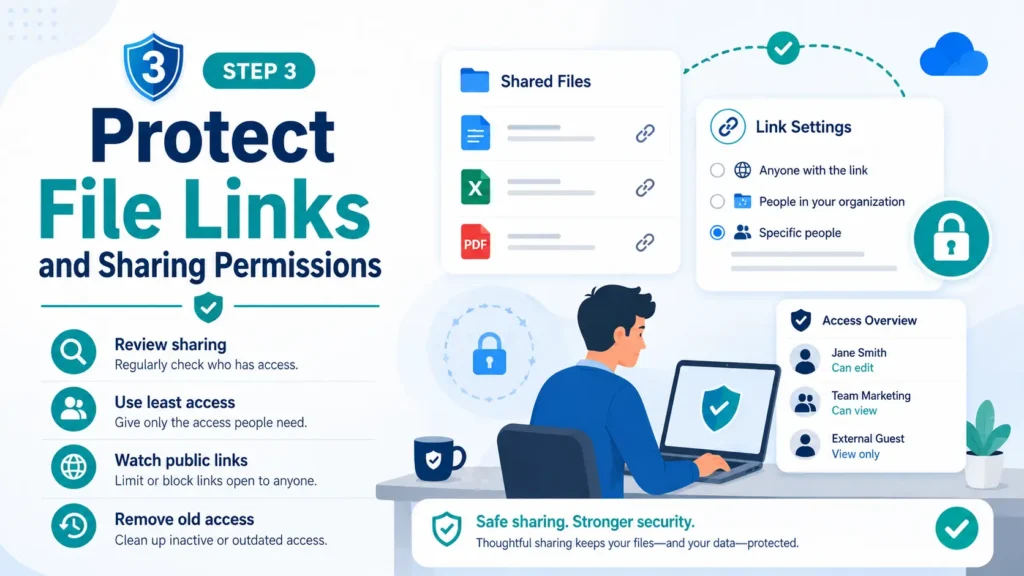
When you receive a shared file, check whether it comes from a trusted sender and whether the file name makes sense. Be extra careful with files that claim to be urgent, confidential, unpaid, legal, tax-related, or security-related. Those labels can be used to trigger fear or curiosity. Do not download unknown attachments just because they look like PDFs, spreadsheets, or cloud documents.
If you manage files for a small business, school group, or family account, review sharing settings regularly. Avoid public links when they are not needed. Remove old shared links. Limit access to the people who truly need it. A safe sharing habit reduces both phishing risk and accidental exposure.
Step 4: Use MFA Carefully and Understand MFA Phishing
Multi-factor authentication is still one of the most important account protections, but users also need to understand MFA phishing. In a normal login, MFA asks you to approve a sign-in that you started. In a phishing situation, an attacker may try to trick you into approving a sign-in, entering a code, or completing a device-code process that you did not start.
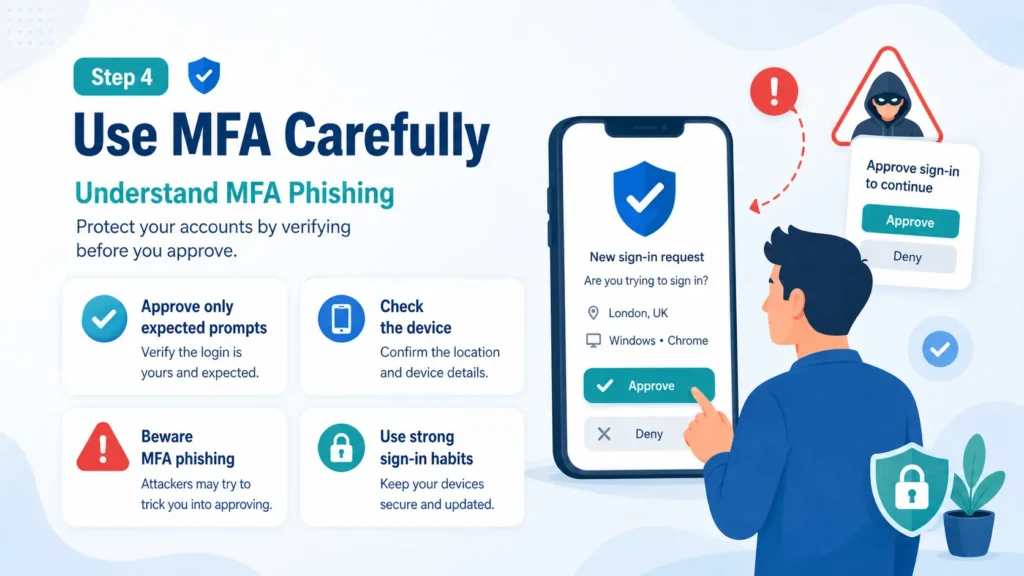
Never approve an MFA request simply because it appears on your phone. If you did not just try to sign in, deny it. If a message asks you to enter a device code, approve a sign-in, or “verify access” for a file you did not expect, stop and check. This is especially important when a request arrives right after an email link.
The FBI IC3 Kali365 notice is a reminder that attackers may try to get access without directly stealing a password. They may seek tokens, approvals, or device-code authorization. For normal users, the safe rule is clear: approve sign-ins only when you personally started the login from a trusted website or app.
Step 5: Use Microsoft 365 Phishing Protection Features
For personal users, protection starts with good habits and built-in reporting tools. For organizations, Microsoft 365 phishing protection can also include security policies, reporting workflows, and Defender for Office 365 features. CISA notes that Microsoft Defender for Office 365 can provide important protections such as anti-spam, anti-malware, and anti-phishing capabilities when properly used and configured.
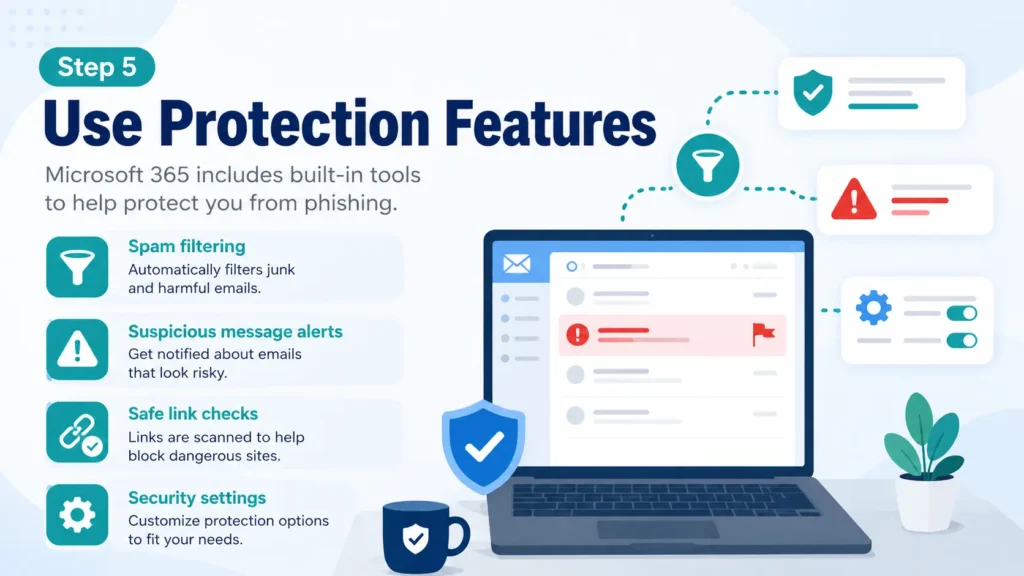
If you are an administrator, review Microsoft Defender for Office 365 protections and compare them with your organization’s needs. Basic users do not need to become administrators, but small business owners and school teams should know that email filtering, anti-phishing policies, and user reporting settings matter.
Microsoft Learn explains that anti-phishing policies in Defender for Office 365 can include impersonation protection settings for specific senders and domains. This matters because many attacks pretend to come from executives, teachers, vendors, managers, or support teams. Protection is strongest when technical controls and user awareness work together.
Step 6: Report Phishing in Outlook and Delete the Message
When a suspicious message reaches your inbox, do not only delete it if you can report it safely. The fastest path for many users is to report phishing in Outlook through the built-in reporting option. Microsoft Support says Outlook users can select a suspicious message and use the Report option to report phishing, which helps remove the message and improve filtering.
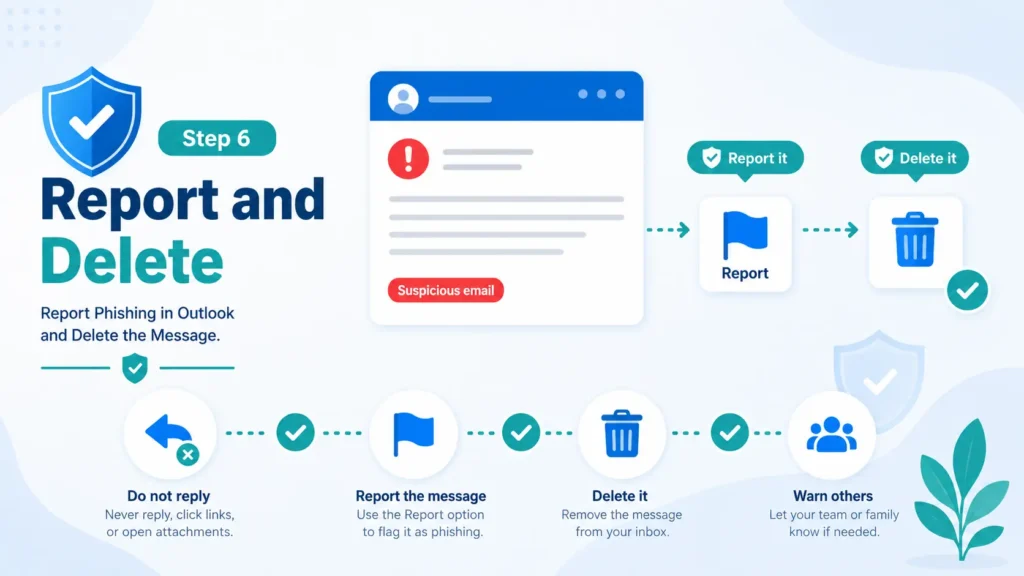
If you are using a work or school account, your organization may also have a custom reporting mailbox, security team, or reporting add-in. Follow your IT policy. Microsoft’s admin documentation also describes the built-in Report button for supported versions of Outlook and explains that users can report phishing messages from supported folders when reporting is enabled.
After reporting, delete the message. Do not forward it casually to friends or coworkers as a warning unless your IT team asks for it. A forwarded phishing email can accidentally spread the bad link. If you want to warn someone, use a screenshot with sensitive details hidden or a plain-text warning that does not include the clickable link.
If the message appears to be part of a larger cyber-enabled crime, you can also report it through FBI IC3. For consumer scams, FTC reporting may also be appropriate depending on what happened. Keep records such as sender addresses, dates, screenshots, and any financial details, but avoid clicking the original link again.
Step 7: Review Account Activity, Apps, and Recovery Options
Prevention does not end after you report a suspicious message. Review account activity, especially if you clicked anything or entered information. Look for unfamiliar sign-ins, strange devices, new forwarding rules, unusual connected apps, mailbox changes, or recovery options you do not recognize. These signs can indicate that someone attempted to gain access or already did.
Check connected apps and permissions carefully. Some modern phishing attempts try to get authorization rather than just a password. If you see an app or permission you do not recognize, remove it and change your password through a trusted route. If this is a work or school account, contact your IT administrator quickly.
Keep recovery email and phone details updated. If an attacker changes recovery information, account recovery becomes harder. Good recovery settings help you regain control when something goes wrong. They also make it easier to notice when settings have been changed without your permission.
Step 8: Build Safer Habits for Students, Families, and Small Businesses
Students should be careful with school documents, scholarship forms, job offers, payment portals, and shared study files. If an email says a file is from a teacher or school office but the sender address looks strange, verify it. Do not enter your school login on a page opened from a suspicious email.
Families should teach a simple rule: if a message asks for passwords, codes, payment details, or urgent account verification, slow down and ask someone trusted. Phishing education works best when it is practical and repeated. A five-minute family discussion can prevent a costly mistake later.
Small businesses should combine employee training with technical controls. Use MFA, set clear reporting rules, review mail forwarding settings, remove inactive accounts, and train employees to verify payment changes by phone using known numbers. Business email and cloud files can contain invoices, contracts, customer records, payroll details, and private conversations. That makes them attractive targets.
Step 9: What To Do If You Think You Already Clicked
If you clicked a suspicious Outlook or OneDrive link, do not panic. Stop interacting with the page, close the tab, and think about what you entered. If you entered a password, change it using the official website or app. If you approved an MFA prompt or device-code request, contact your IT team or review account security immediately. If you entered payment details, contact the bank or card issuer using the number on your card.
If you downloaded a file, scan your device and avoid opening the file again. If this happened on a work or school device, report it quickly to your IT or security team. Fast reporting helps the organization block related messages, revoke risky sessions, and warn others. You are not helping attackers by reporting the mistake; you are helping stop the incident from spreading.
If you suspect identity theft or a broader consumer scam, follow official reporting and recovery guidance. The FTC’s phishing and fraud resources can help consumers understand what to do next. For cyber-enabled crime, IC3 is the FBI-run reporting hub. Use official sites only, not links from the suspicious message.
Quick Checklist: A Safer Outlook and OneDrive Routine
A safer routine is easier to follow when it is short. Before opening a file link from email, check the sender, the file context, and the sign-in path. If any one of those feels wrong, stop and verify. For example, a real client may send a document you expected, from a recognizable domain, with a message that matches an ongoing conversation. A risky message may arrive out of nowhere, use a generic greeting, push urgency, and send you to a sign-in page from a button.
Use this simple rule for Outlook: read first, inspect second, click last. Read the message for pressure tactics. Inspect the sender and link destination. Click only when the sender, context, and destination all make sense. If you still feel uncertain, open the official website or app yourself instead of using the link inside the message.
Use this simple rule for OneDrive: shared files should have a reason. If a document claims to be an invoice, school notice, HR form, legal file, or payment request, confirm the sender before opening it. If the file asks you to sign in again, approve access, or enter a code, slow down. A real document should not pressure you to hand over account access.
For small teams, create a visible rule: payment changes, password requests, cloud-folder invitations, and administrator requests must be verified through a known channel. That rule protects the whole team. For families, teach children and older relatives that they should never enter a password or code because an email tells them to. For students, confirm unexpected school file links through the school portal or teacher before signing in.
The best protection is not one tool. It is a layered routine: cautious reading, safe sign-in habits, MFA awareness, Outlook reporting, OneDrive sharing review, and regular account monitoring. When these habits become normal, phishing messages lose much of their power.
- Realistic Indian Accent AI Voices for Free: 3 Best Tools
- Generative AI Uses and Risks: 11 Real-Life Lessons for Beginners
- What is Generative AI? 12 Powerful Basics for Beginners
- What is AI? 11 Powerful Basics Every Beginner Should Know
Source List –
| Source | Clean URL |
| FBI IC3 – Kali365 Phishing-as-a-Service Kit | https://www.ic3.gov/PSA/2026/PSA260521 |
| FBI IC3 – Report Cyber-Enabled Crime | https://www.ic3.gov/ |
| FTC – How To Recognize and Avoid Phishing Scams | https://consumer.ftc.gov/articles/how-recognize-avoid-phishing-scams |
| FTC – Phishing Scams Topic Page | https://www.ftc.gov/news-events/topics/identity-theft/phishing-scams |
| Microsoft Support – Protect Yourself from Phishing | https://support.microsoft.com/en-us/security/protect-yourself-from-phishing |
| Microsoft Support – Phishing and Suspicious Behavior in Outlook | https://support.microsoft.com/en-us/office/phishing-and-suspicious-behavior-in-outlook-0d882ea5-eedc-4bed-aebc-079ffa1105a3 |
| Microsoft Learn – Anti-phishing Policies in Defender for Office 365 | https://learn.microsoft.com/en-us/defender-office-365/anti-phishing-policies-about |
| CISA – Microsoft Defender for Office 365 | https://www.cisa.gov/resources-tools/services/m365-defender-office |
Conclusion
The safest way to protect Outlook OneDrive from phishing is to combine careful habits with built-in account protections. Do not trust a file link just because it looks professional. Check the sender, verify the domain, confirm unexpected files through another channel, use MFA wisely, understand MFA phishing, and report suspicious messages before deleting them.
Outlook, OneDrive, and Microsoft 365 are powerful tools. They become safer when users know how attackers abuse urgency, file sharing, login prompts, and approval requests. A strong defense is not complicated: slow down, verify, use trusted websites or apps, report suspicious messages, and review account activity regularly.
For InfoJustify readers, the main takeaway is simple: you do not need to become a cybersecurity expert to stay safer. You need repeatable habits. Every time you pause before clicking, check the sender, inspect the link, and use official reporting tools, you reduce the chance that a phishing message becomes an account takeover.
FAQs –
How do I protect Outlook OneDrive from phishing?
To protect Outlook OneDrive from phishing, verify unexpected file links, check the sender address, avoid signing in from email buttons, turn on MFA, report suspicious messages in Outlook, and review account activity regularly.
Can OneDrive links be used in phishing scams?
Yes. A OneDrive phishing scam may use a fake file-sharing notice or a fake sign-in page to trick you into entering credentials, approving access, or opening a harmful file. Always verify unexpected file links before opening them.
What is MFA phishing?
MFA phishing is a tactic where attackers try to trick you into approving a sign-in, entering a code, or completing a device authorization that you did not start. Only approve MFA requests you personally initiated from a trusted site or app.
How do I report phishing in Outlook?
In supported Outlook versions, select the suspicious message and choose Report, then Report phishing. Work or school users should also follow their organization’s security reporting process.
Is Microsoft 365 phishing protection enough by itself?
Microsoft 365 phishing protection can reduce risk, but it works best with safe user habits, MFA, account review, reporting, and organization-specific security policies.
What should I do if I already clicked a suspicious OneDrive or Outlook link?
Stop using the page, close it, change any exposed password through the official site or app, review sign-in activity, check connected apps, report the message, and contact your IT team or bank if account or money details were involved.
- Protect Outlook OneDrive from Phishing: 9 Smart Safety Steps
- Clicked Phishing Link What to Do: 10 Recovery Steps
- How to Spot Phishing Emails: Red Flags & Examples
- FBI Alert Outlook OneDrive: Phishing Scam Explained
- What Is Phishing? Meaning, Examples & Safety Tips
- How to Improve Your Credit Score in the USA: Complete Guide
- Why Is Roland Garros So Hard to Win? Full Guide
- Roland Garros Winners List: Champions, Records & Legends
- Why Is Roland Garros Played on Clay? Court Guide
- French Open vs Roland Garros: Are They the Same Tournament?
- Roland Garros Meaning, History & Clay Court Explained
- Guzman y Gomez vs Chipotle: Menu, Taste, and Value Compared
- Chipotle Bowl vs Burrito: Which One Is Healthier?
- Chipotle Nutrition Guide: Calories, Protein & Smart Orders
- Healthiest Thing to Eat at Chipotle: Best Orders Explained
- Chipotle Mexican Grill Menu Explained: Best Items to Try
- Social Security Payment Schedule 2026: Dates by Birth Date
- Social Security COLA 2026 Explained: What Changed This Year
- Kyle Busch Pneumonia Sepsis: Cause of Death Explained
- Why Are Social Security Checks Late in May 2026? (The Real Truth)
- Antarctica From Space: 5 Climate Signals to Watch
- Ebola Outbreak 2026: Bundibugyo Virus Explained & Related Topic
- Robert Redfield: Biography, CDC Role, COVID-19 Legacy
- Types of Yoga: 30 Powerful Styles Explained
- What is Cloud Storage ? 7 Best Basics
- Are AI voices safe for YouTube monetization
- Realistic Indian Accent AI Voices for Free: 3 Best Tools
- ElevenLabs Free Alternatives for Emotional Voices: 3 Picks
- Best Free AI Voice Generators for Faceless YouTube Shorts
- Top 5 Free AI Voice Generator Realistic Tools
4 thoughts on “Protect Outlook OneDrive from Phishing: 9 Smart Safety Steps”