
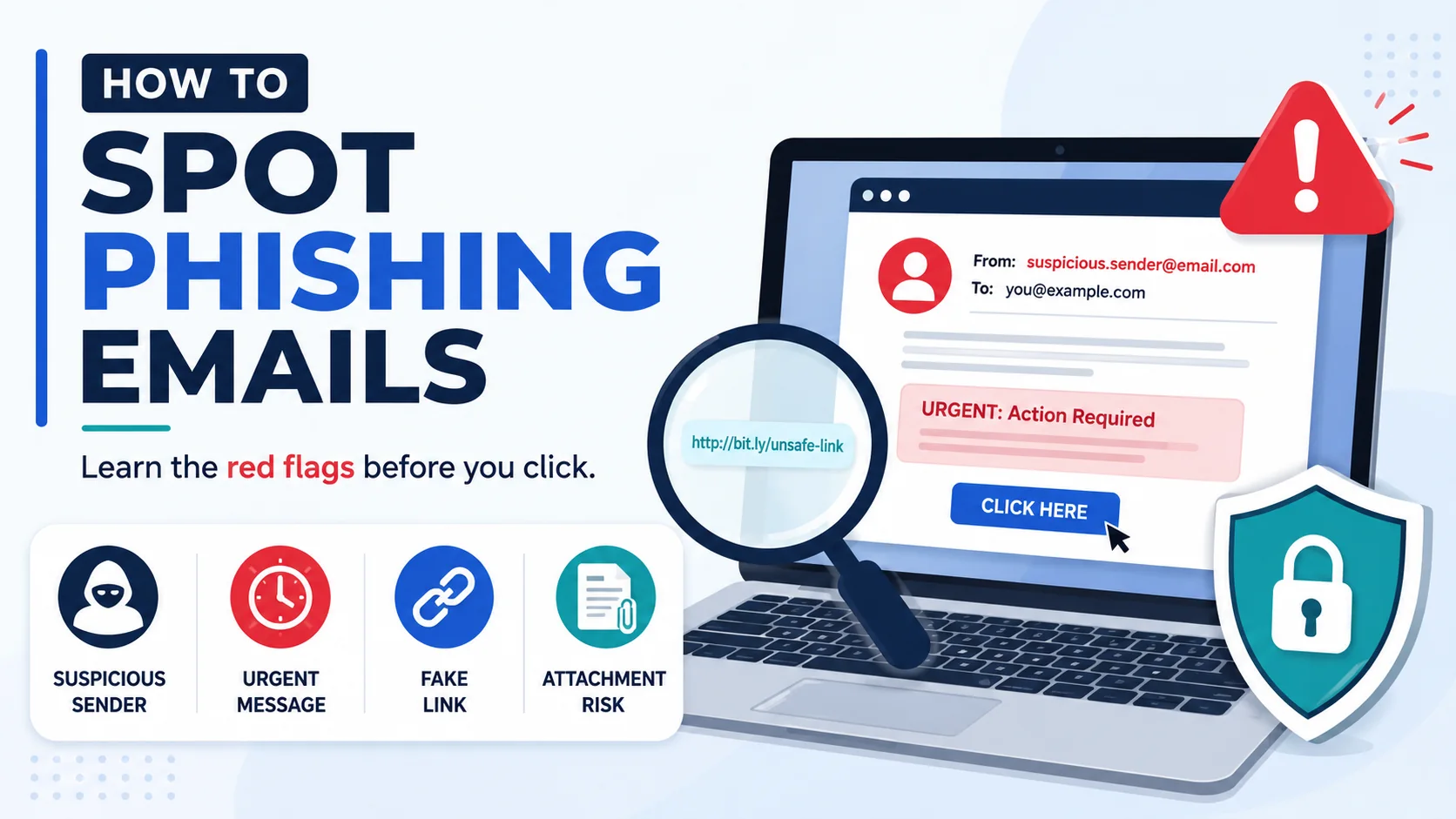
To how to spot phishing emails quickly, look for a message that pushes you to act fast, asks for passwords or verification codes, includes an unexpected link or attachment, uses a sender address that does not match the real organization, or sends you to a sign-in page you did not open yourself. The safest habit is simple: pause, verify, and do not click in a rush. The FTC phishing guide explains that scammers use email or text messages to trick people into sharing personal or financial information, while Microsoft phishing protection recommends avoiding suspicious links and attachments and verifying through a trusted channel.
Cybersecurity Disclaimer
This article is for educational purposes only. Cybersecurity threats change over time, and different email providers, schools, workplaces, and devices may use different security tools. If you believe your account, money, or personal information has been compromised, report the incident to the relevant platform, your bank if money is involved, and trusted official reporting channels such as the FBI IC3 or the FTC.
- Cybersecurity Disclaimer
- What Makes a Phishing Email Dangerous?
- How to Spot Phishing Emails in the First 30 Seconds
- Sender Address Red Flags
- Suspicious Links and Attachments
- Urgency, Fear, and Pressure Tactics
- Requests for Passwords, Codes, or Personal Information
- Phishing Examples Beginners Should Recognize
- How to Check a Link Without Clicking It
- What to Do If You Clicked a Phishing Email
- How to Report a Phishing Email
- Checklist: Safe Email Habits for Everyday Users
- How Fake Login Pages Trick Users
- Email Safety for Work, School, and Family Accounts
- Source List –
- Conclusion
- FAQ –
What Makes a Phishing Email Dangerous?
A phishing email is dangerous because it does not always look like a scam. Many messages copy the style of a bank notice, delivery update, workplace file share, school login alert, streaming subscription warning, or cloud storage notification. The goal is to make you click before you think. That is why learning how to spot phishing emails is one of the most practical cybersecurity skills for everyday internet users.
The FTC says phishing messages often try to trick people into giving personal or financial information. The message may claim there is a problem with your account, a payment failed, a package is waiting, or a document is ready to view. Those stories are designed to create curiosity, pressure, or fear.
A phishing email can hurt you in several ways. It can steal your password, lead you to a fake login page, install malware through an attachment, expose sensitive business files, or trick you into paying a fake bill. For families, students, and small businesses, one rushed click can create a larger problem than the email itself.
The key is not to panic. Most phishing emails leave clues. Some clues are obvious, such as bad grammar or a strange sender. Others are subtle, such as a domain that looks almost right, a link that redirects somewhere else, or a message that asks for a security code that legitimate services should not request by email.
How to Spot Phishing Emails in the First 30 Seconds
When an email feels important, slow down and scan it before you click anything. Start with the sender, subject line, greeting, link, attachment, and request. A real company may contact you by email, but a suspicious message often combines several warning signs at once.
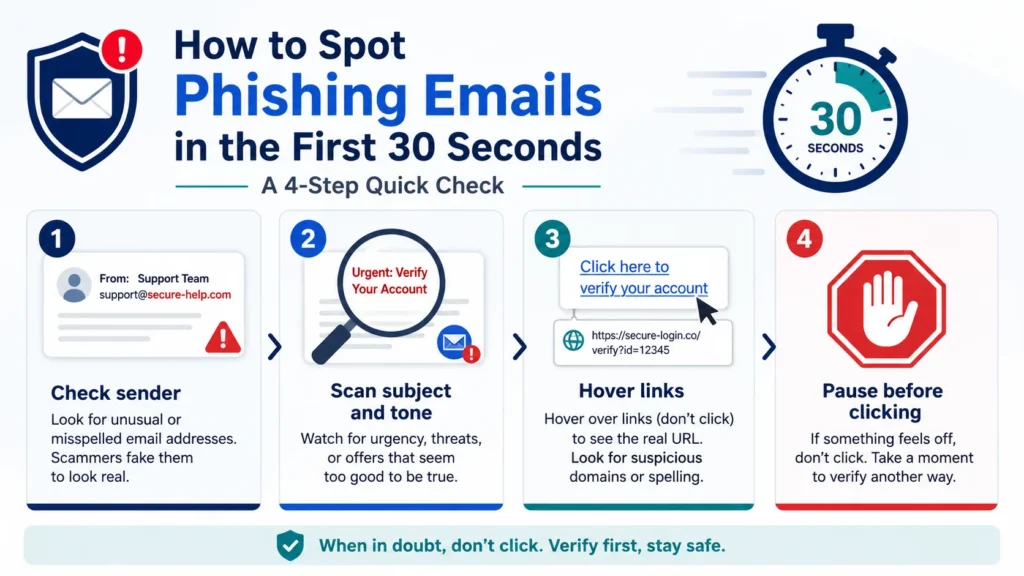
First, ask: Was I expecting this message? If the answer is no, treat the email carefully. An unexpected invoice, shared document, password reset, delivery alert, or account-lock warning deserves extra attention.
Second, check whether the message wants immediate action. Many phishing email red flags involve pressure: “act now,” “last warning,” “your account will close,” or “payment failed.” The FTC scam guidance warns that scammers often pretend to be organizations people know and create urgency so victims respond quickly.
Third, look at what the email wants. If it asks you to sign in, confirm a code, update payment details, download a file, or verify personal information, pause. Open a new browser tab and go to the official website yourself instead of using the email link.
| Check | What to Look For | Safe Action |
| Sender | Display name does not match email domain | Verify through official channel |
| Link | Button hides a strange web address | Do not click; open site yourself |
| Attachment | Unexpected file or invoice | Confirm with sender another way |
| Request | Password, code, payment, or ID details | Stop and verify first |
Sender Address Red Flags
The sender name can be misleading. A message may display “Support Team,” “Billing Department,” or “Cloud Storage,” but the real email address may come from a random domain. Always look beyond the display name.
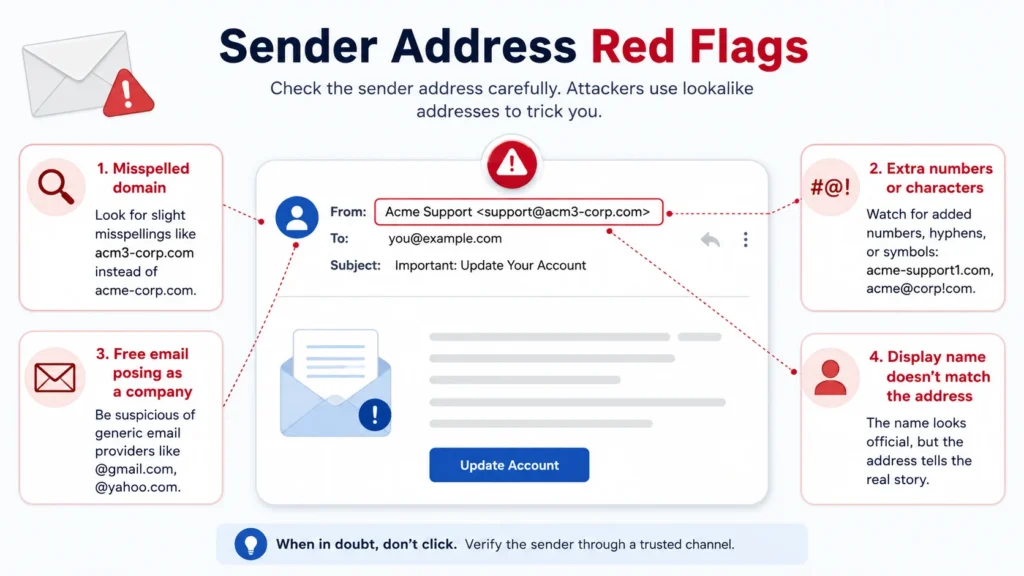
A common trick is using a domain that looks similar to a trusted brand. For example, a scammer may replace letters, add extra words, or use a strange extension. The message might look professional, but the sender address may not match the official organization.
For work or school accounts, sender verification matters even more. CISA encourages organizations to teach people how to identify and report suspicious emails. If a message claims to be from a coworker, professor, vendor, or manager but the tone or request feels unusual, verify through another channel before responding.
Good rule: if the email asks for something sensitive, do not trust the display name alone. Check the full sender address, compare it with previous legitimate messages, and contact the organization using a website or phone number you already know is real.
- Protect Outlook OneDrive from Phishing: 9 Smart Safety Steps
- Clicked Phishing Link What to Do: 10 Recovery Steps
- FBI Alert Outlook OneDrive: Phishing Scam Explained
- What Is Phishing? Meaning, Examples & Safety Tips
Suspicious Links and Attachments
Links and attachments are the heart of many phishing attacks. A link may say “View Document” or “Verify Account,” but the actual destination may be a fake page. An attachment may look like an invoice, resume, receipt, delivery form, or school file, but it could contain malware or lead you to a fake login.
Microsoft advises users not to open suspicious links or attachments. It also recommends hovering over links to see whether the address matches what appears in the message. This is one of the simplest ways to find suspicious email signs before clicking.
On a computer, hover over the link without clicking. On mobile, be more careful because link previews can be harder to inspect. When in doubt, do not tap. Instead, open the official website in a new browser tab or use the organization’s official app.
Attachments deserve the same caution. If someone sends a file you were not expecting, ask the sender through another trusted channel. Do not reply to the suspicious email itself if you think the account might be compromised.
Urgency, Fear, and Pressure Tactics
Scammers often use emotion because emotion reduces careful thinking. A phishing email may say your account will close, your payment failed, your tax refund is blocked, your delivery is on hold, your cloud file will expire, or your device is infected.
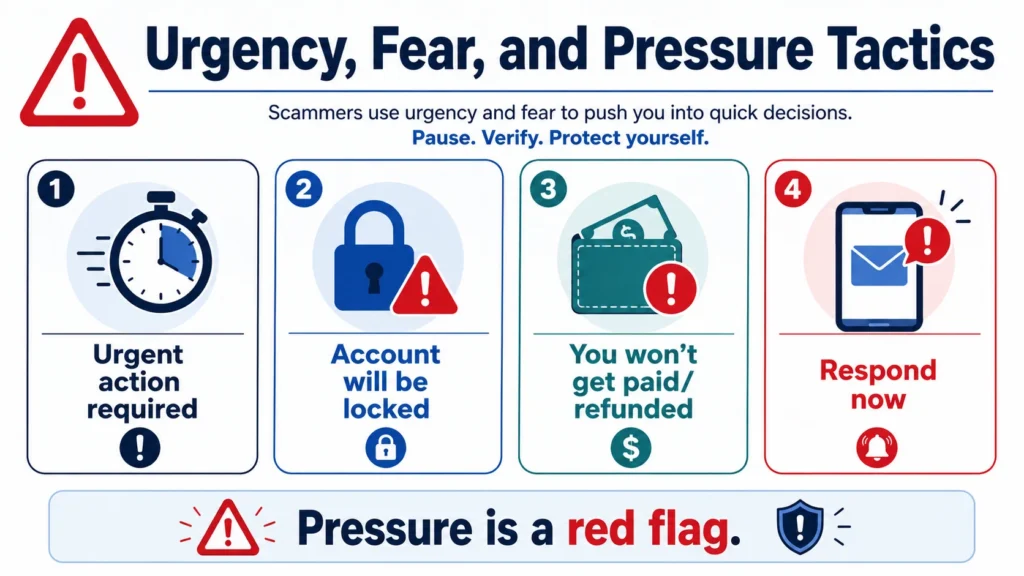
These pressure tactics are not accidental. They push you to click fast, enter information, or download something without checking. That is why the safest response is to slow down. A real emergency should still be verifiable through a trusted website, app, or phone number.
Urgency alone does not prove an email is fake, but urgency plus an unexpected link is a major warning sign. If the email says you must act within minutes, that is exactly when you should stop and verify.
A helpful habit is to read the email as if you were helping a friend. Would you tell them to click immediately, or would you tell them to check the sender, link, and official website first? That little mental distance can prevent mistakes.
Requests for Passwords, Codes, or Personal Information
One of the strongest phishing warning signs is a request for passwords, multi-factor authentication codes, bank details, Social Security numbers, or full identity information. Legitimate organizations generally do not ask you to send sensitive information through email.
Some modern phishing attacks are more subtle. They may not ask for your password directly. Instead, they may send you to a fake sign-in page or ask you to approve a login request. If you did not start the login yourself, do not approve anything.
CISA’s basic cyber-safety guidance includes using multi-factor authentication, updating software, thinking before clicking, and using strong passwords. Those habits are useful, but they work best when you also avoid giving codes or approvals to suspicious prompts.
If a message asks for a code, treat it like a key. Do not share it by email, text, chat, or phone unless you are absolutely sure you initiated the request and are using the official service.
Phishing Examples Beginners Should Recognize
Here are simple phishing examples that beginners should recognize. The exact wording changes, but the pattern stays similar: a message claims there is a problem or opportunity, then asks you to click, sign in, pay, or share information.
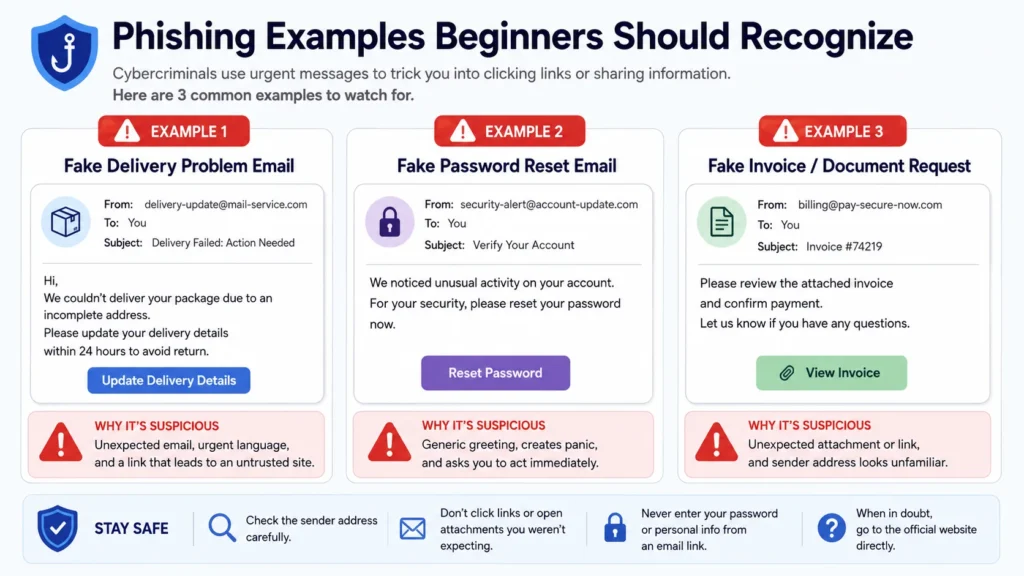
Example 1: “Your account has been locked. Verify your identity now.” This message often links to a fake sign-in page. Instead of clicking, open the official website yourself.
Example 2: “Someone shared a document with you.” This can be real in a workplace or school setting, but scammers use file-sharing themes because they feel normal. Verify the sender and the domain before opening the file.
Example 3: “Your package is delayed. Pay a small fee.” This can lead to a fake delivery page that steals payment details. Go to the carrier’s official site and enter the tracking number yourself if you have one.
Example 4: “Your subscription payment failed.” This can pressure you to update card details through a fake page. Open the official app or website directly and check your billing status there.
| Phishing Theme | Common Bait | Safer Response |
| Account locked | Verify now or lose access | Go to official app/site yourself |
| Shared document | Click to view file | Verify sender and file source |
| Delivery fee | Pay small fee to release package | Use official carrier site |
| Subscription billing | Update payment method | Check billing inside official account |
How to Check a Link Without Clicking It
Checking a link without clicking is one of the most useful habits for email safety. On desktop, place your cursor over the link and look at the URL preview. Does the domain match the organization? Is it misspelled? Does it use extra words or strange characters?
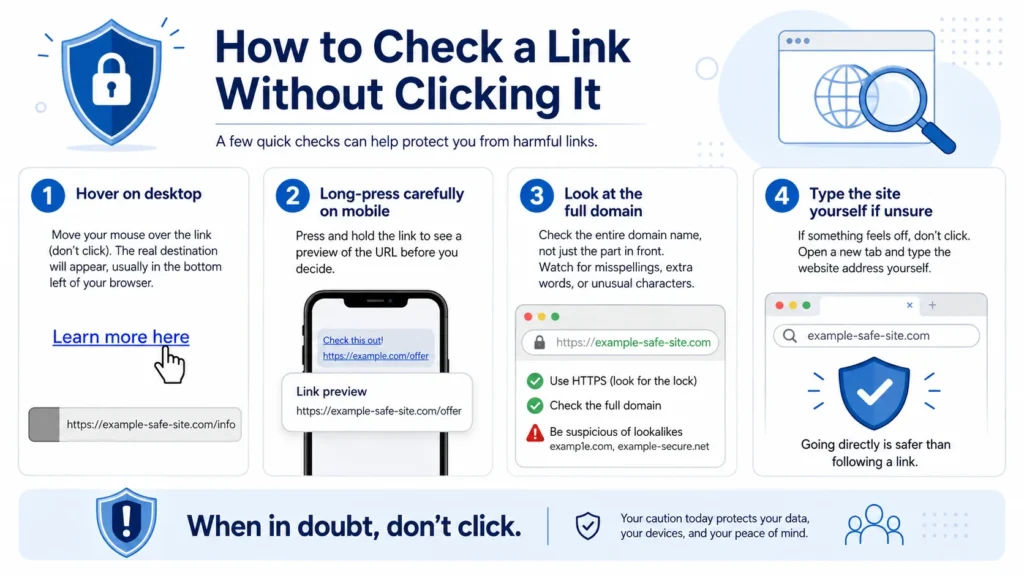
Look at the main domain, not just the beginning of the link. Scammers may place trusted words at the front of a long URL to make it look safe. The actual domain is the part that controls where the link goes.
Shortened links are also risky in unexpected messages because they hide the destination. If a message from a bank, school, delivery service, or workplace uses a shortened link unexpectedly, verify through another route.
Microsoft’s guidance to hover over links is useful, but it is not the only step. If you feel unsure, do not use the link at all. Type the official website address yourself or use a saved bookmark.
What to Do If You Clicked a Phishing Email
If you clicked a phishing email, do not panic, but act quickly. What you should do depends on what happened. Did you only click? Did you enter a password? Did you download a file? Did you send money? Each situation needs a different response.
If you entered a password, change that password immediately from the official website or app. If you reuse that password anywhere else, change it there too. Turn on multi-factor authentication if it is available.
If you downloaded a file, do not open it again. Run a security scan, update your device, and follow your workplace or school reporting process if the device belongs to an organization.
If you shared payment information or sent money, contact your bank, card issuer, or payment provider right away. If personal information was exposed, consider steps for identity-theft protection and report the incident to official channels.
How to Report a Phishing Email
Learning how to report phishing email attempts helps protect other people too. The FTC recommends forwarding phishing emails to the Anti-Phishing Working Group at reportphishing@apwg.org, forwarding phishing text messages to SPAM at 7726, and reporting phishing attempts at ReportFraud.ftc.gov.
If you use Outlook, Microsoft provides options to report phishing or suspicious behavior inside Outlook. Reporting messages through your email provider can help improve filtering and protect other users.
If you lost money, gave sensitive information, or believe the incident is cybercrime, the FBI’s spoofing and phishing page directs people to report spoofing and phishing to IC3. The main IC3 report portal is used for cyber-enabled frauds, scams, and cybercrime complaints.
For work, school, or business accounts, also report the message to your IT team, administrator, or security contact. Do not assume someone else already reported it.
Checklist: Safe Email Habits for Everyday Users
The best defense is not one tool. It is a set of small habits you repeat every day. Use strong unique passwords, turn on multi-factor authentication, update your software, and think before you click. CISA’s “4 Things” guidance includes multi-factor authentication, updates, strong passwords, and careful clicking as basic cyber safety steps. These habits are simple, but they create a strong routine that helps you respond calmly when a message looks important, unexpected, or emotionally urgent.
Keep your personal and work email habits separate when possible. Do not use your school or business email for random sign-ups. Do not store sensitive files in public links. Do not approve sign-in prompts you did not start.
For families, talk about suspicious messages before someone gets tricked. For students, verify school messages with official portals. For small businesses, train staff on phishing email red flags and create a simple reporting process.
Most people do not fall for phishing because they are careless. They fall for it because the message arrives at the wrong moment: when they are busy, worried, or distracted. A simple rule helps: if a message creates pressure, slow down.
| Habit | Why It Helps |
| Use multi-factor authentication | Adds protection if a password is stolen |
| Use unique passwords | Prevents one stolen password from unlocking many accounts |
| Update software | Closes known security weaknesses |
| Verify links before clicking | Reduces fake-login and malware risk |
| Report suspicious messages | Helps providers and organizations block future scams |
How Fake Login Pages Trick Users
A fake login page is one of the most common phishing tools because it feels familiar. The email tells you to view a file, confirm a delivery, update a payment method, or unlock an account. The page may copy the look of a real login screen, but it sends your details to the attacker.
A safe habit is to treat every unexpected login request as suspicious. If a message says you must sign in to fix a problem, close the email and open the real website or app yourself. Do not trust the button inside the message just because the page looks polished.
Look carefully at the web address before entering anything. A fake page may use extra words, misspellings, hyphens, unfamiliar domains, or a long address that hides the real destination. The design may look convincing, but the address often gives the scam away.
Also remember that multi-factor authentication prompts can be abused if you approve requests you did not start. If your phone asks you to approve a sign-in and you were not logging in, deny the request and change your password from the official website.
Email Safety for Work, School, and Family Accounts
Phishing does not only target banks or shopping accounts. Work email, school portals, cloud storage, shared documents, and family accounts are valuable because they contain messages, files, contacts, calendars, and trusted relationships.
For employees and small businesses, a fake invoice or shared-file message can create serious risk. An attacker who steals one mailbox may use it to send believable messages to clients, coworkers, or vendors. This is why CISA encourages staff education and clear reporting steps for suspicious emails.
For students, phishing can appear as a scholarship notice, campus login alert, assignment document, or financial aid message. The safest move is to use official school portals and ask a teacher, advisor, or IT desk when something feels unusual.
For families, phishing often uses emotional pressure: a fake emergency, package warning, bank notice, prize message, or streaming-account problem. Talk openly about scam messages so children, parents, and older relatives know they can ask before clicking.
Source List –
| Source | Use in Article | Clean URL |
|---|---|---|
| FTC – How To Recognize and Avoid Phishing Scams | Definition, phishing signs, protection, and reporting guidance | https://consumer.ftc.gov/articles/how-recognize-avoid-phishing-scams |
| FTC – How To Avoid a Scam | Scam impersonation, urgency, and information-request warnings | https://consumer.ftc.gov/articles/how-avoid-scam |
| CISA – Shields Up Guidance for Families | Beginner phishing and cyber safety context | https://www.cisa.gov/shields-guidance-families |
| CISA – Teach Employees to Avoid Phishing | Small business and employee phishing reporting/training context | https://www.cisa.gov/audiences/small-and-medium-businesses/secure-your-business/teach-employees-avoid-phishing |
| Microsoft – Protect Yourself from Phishing | Suspicious link/attachment and hover-to-check guidance | https://support.microsoft.com/en-us/security/protect-yourself-from-phishing |
| Microsoft – Phishing and Suspicious Behavior in Outlook | Outlook reporting and suspicious message context | https://support.microsoft.com/en-us/office/phishing-and-suspicious-behavior-in-outlook-0d882ea5-eedc-4bed-aebc-079ffa1105a3 |
| FBI IC3 | Official cybercrime/scam complaint reporting portal | https://www.ic3.gov/ |
| FBI – Spoofing and Phishing | Spoofing/phishing reporting guidance | https://www.fbi.gov/how-we-can-help-you/scams-and-safety/common-frauds-and-scams/spoofing-and-phishing |
| CISA – 4 Things You Can Do To Keep Yourself Cyber Safe | MFA, updates, careful clicking, and strong password habits | https://www.cisa.gov/news-events/news/4-things-you-can-do-keep-yourself-cyber-safe |
- Roland Garros Winners List: Champions, Records & Legends
- Generative AI Uses and Risks: 11 Real-Life Lessons for Beginners
- What is Generative AI? 12 Powerful Basics for Beginners
- What is AI? 11 Powerful Basics Every Beginner Should Know
Conclusion
Knowing how to spot phishing emails is a practical skill for anyone who uses email, text messages, cloud files, online banking, school portals, or workplace tools. Phishing works because it feels urgent and familiar. The message may look like a normal alert, but the goal is to push you toward a risky click.
The best protection is a calm routine: check the sender, inspect links, question unexpected attachments, avoid sharing passwords or codes, and open websites yourself instead of trusting email buttons. When a message creates fear or pressure, take that as a signal to slow down.
If you clicked, shared information, or lost money, respond quickly. Change affected passwords, enable stronger protection, contact your bank if payment information was exposed, and report the scam through your email provider, FTC, and FBI IC3 when appropriate.
Phishing emails will keep changing, but the basic warning signs stay familiar. If a message feels unexpected, urgent, or asks you to sign in through a link, pause and verify another way before you act.
FAQ –
1. What is the easiest way to spot a phishing email?
The easiest way to spot a phishing email is to look for urgency, a strange sender address, unexpected links or attachments, and requests for passwords, codes, payment details, or personal information.
2. Can a phishing email look professional?
Yes. Many phishing emails look professional because scammers copy the style of real brands, workplaces, banks, schools, or cloud services. A polished design does not prove an email is safe.
3. Is it safe to click a link if the email looks real?
Not always. If the email is unexpected or asks you to sign in, open the official website yourself in a new browser tab instead of clicking the message link.
4. What should I do if I clicked a phishing email?
If you clicked a phishing email, change any exposed password, turn on multi-factor authentication, scan your device if you downloaded a file, contact your bank if money or payment data was involved, and report the message.
5. Where can I report a phishing email?
You can report phishing to your email provider, forward phishing emails to reportphishing@apwg.org as recommended by the FTC, report scams at ReportFraud.ftc.gov, and file cybercrime complaints with the FBI IC3 when appropriate.
6. Do phishing emails only target businesses?
No. Phishing emails target individuals, families, students, small businesses, employees, and large organizations. Anyone with an email account, online account, or payment information can be targeted.
- Protect Outlook OneDrive from Phishing: 9 Smart Safety Steps
- Clicked Phishing Link What to Do: 10 Recovery Steps
- How to Spot Phishing Emails: Red Flags & Examples
- FBI Alert Outlook OneDrive: Phishing Scam Explained
- What Is Phishing? Meaning, Examples & Safety Tips
- How to Improve Your Credit Score in the USA: Complete Guide
- Why Is Roland Garros So Hard to Win? Full Guide
- Roland Garros Winners List: Champions, Records & Legends
- Why Is Roland Garros Played on Clay? Court Guide
- French Open vs Roland Garros: Are They the Same Tournament?
- Roland Garros Meaning, History & Clay Court Explained
- Guzman y Gomez vs Chipotle: Menu, Taste, and Value Compared
- Chipotle Bowl vs Burrito: Which One Is Healthier?
- Chipotle Nutrition Guide: Calories, Protein & Smart Orders
- Healthiest Thing to Eat at Chipotle: Best Orders Explained
- Chipotle Mexican Grill Menu Explained: Best Items to Try
- Social Security Payment Schedule 2026: Dates by Birth Date
- Social Security COLA 2026 Explained: What Changed This Year
- Kyle Busch Pneumonia Sepsis: Cause of Death Explained
- Why Are Social Security Checks Late in May 2026? (The Real Truth)
- Antarctica From Space: 5 Climate Signals to Watch
- Ebola Outbreak 2026: Bundibugyo Virus Explained & Related Topic
- Robert Redfield: Biography, CDC Role, COVID-19 Legacy
- Types of Yoga: 30 Powerful Styles Explained
- What is Cloud Storage ? 7 Best Basics
2 thoughts on “How to Spot Phishing Emails: Red Flags & Examples”