
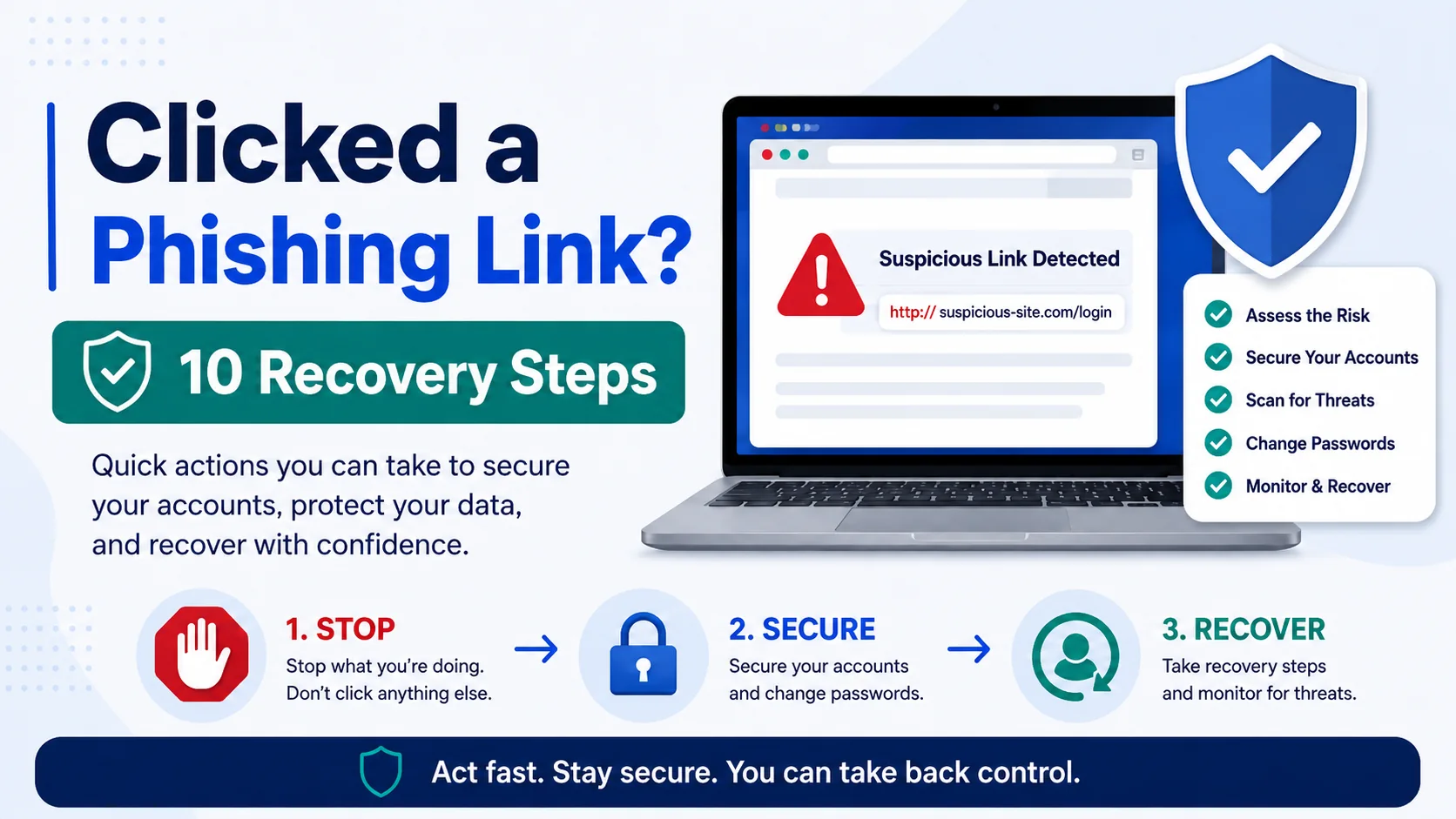
Clicked phishing link what to do: first, do not enter any more information. Close the page, disconnect from the internet if you downloaded something suspicious, and go directly to the real website or app to change the affected password. Then turn on multi-factor authentication, review recent account activity, scan your device, contact your bank if financial details were exposed, and report phishing scam details to the right place. If you shared personal information, use IdentityTheft.gov for recovery guidance and consider filing a report with the FTC or FBI IC3 when money, identity theft, or cybercrime is involved.
Important Safety Note –
This article is for educational purposes only. It is not legal, financial, or cybersecurity incident-response advice. If a work, school, bank, medical, or government account may be involved, contact that organization through its official website, phone number, or IT/security team immediately.
- Important Safety Note –
- Clicked a Phishing Link? Start Here
- Step 1: Stop Interacting With the Page
- Step 2: Decide What You Exposed
- Step 3: Change Password After Phishing Safely
- Step 4: Turn On Multi-Factor Authentication
- Step 5: Check Account Activity and Security Settings
- Step 6: Scan Your Device and Update Software
- Step 7: Contact Your Bank or Card Issuer If Money Is Involved
- Step 8: Report the Phishing Scam
- Step 9: Watch for Identity Theft and Follow-Up Scams
- Step 10: Build Safer Habits for Next Time
- Quick Recovery Checklist –
- Source List –
- Conclusion
- FAQ –
Clicked a Phishing Link? Start Here
If you searched for clicked phishing link what to do, you are probably worried and maybe a little embarrassed. First, take a breath. Clicking a link is not the same as handing over every account you own. The risk depends on what happened after the click: whether you entered a password, downloaded a file, approved a sign-in request, shared a code, or sent money.
The safest response is to move quickly but not panic. A phishing link is designed to rush you into action. Your recovery plan should do the opposite: slow down, separate what happened, and protect the accounts that might be affected. The FTC explains that phishing messages often pretend to be from trusted organizations and try to get personal or financial information. You can review official FTC phishing guidance for general scam warning signs.
This guide gives you a practical recovery path for US readers. It covers what to do immediately, when to change password after phishing, how to protect account after phishing, how to report the incident, and how to watch for follow-up scams. Use the steps in order if the incident just happened. If you already know you shared money or identity information, jump to the reporting and identity-theft sections too.
| What Happened | Risk Level | First Move |
| You clicked but did not enter anything | Lower, but still worth caution | Close the page, clear the tab, and watch for suspicious activity. |
| You entered a password | High | Change the password through the real website and enable MFA. |
| You downloaded a file | Potential device risk | Disconnect if needed, scan the device, and do not open the file. |
| You entered payment or bank details | High financial risk | Contact your bank or card issuer immediately. |
| You shared SSN or identity documents | Identity-theft risk | Use IdentityTheft.gov and monitor accounts closely. |
Step 1: Stop Interacting With the Page
The first step is simple: stop. Do not click more buttons, do not download more files, do not approve a login request, and do not reply to the message. If the page is still open, close it. If a download started, cancel it if possible. If you already downloaded a file, do not open it.
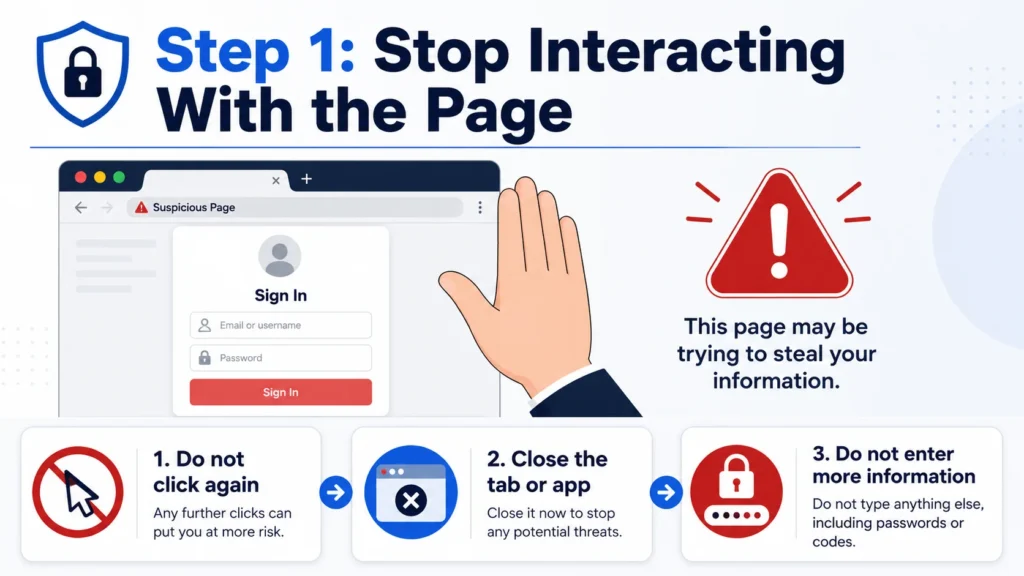
If you only clicked and nothing else happened, the damage may be limited. But if the site asked you to sign in, enter a verification code, provide card information, or install an app, treat it as a possible compromise. A phishing page may look professional, but the goal is usually to collect credentials, payment details, or access approvals.
If you think a file, browser extension, or app was downloaded, disconnecting from the internet can be a reasonable short-term step while you scan the device. On a home computer, you can turn off Wi-Fi or unplug Ethernet. On a phone, you can turn on airplane mode temporarily. Do not delete evidence if money, work data, or identity theft may be involved; screenshots and message details can help with reports.
For work or school accounts, report the message to your IT team immediately. Do not wait until you see obvious damage. A security team may need to revoke sessions, check sign-in logs, remove malicious inbox rules, or warn other users who received the same message.
- Protect Outlook OneDrive from Phishing: 9 Smart Safety Steps
- How to Spot Phishing Emails: Red Flags & Examples
- FBI Alert Outlook OneDrive: Phishing Scam Explained
- What Is Phishing? Meaning, Examples & Safety Tips
Step 2: Decide What You Exposed
The next step is to identify what information you gave away. This matters because recovery after a phishing link is different if you only opened a page versus if you entered your bank login or uploaded identity documents.
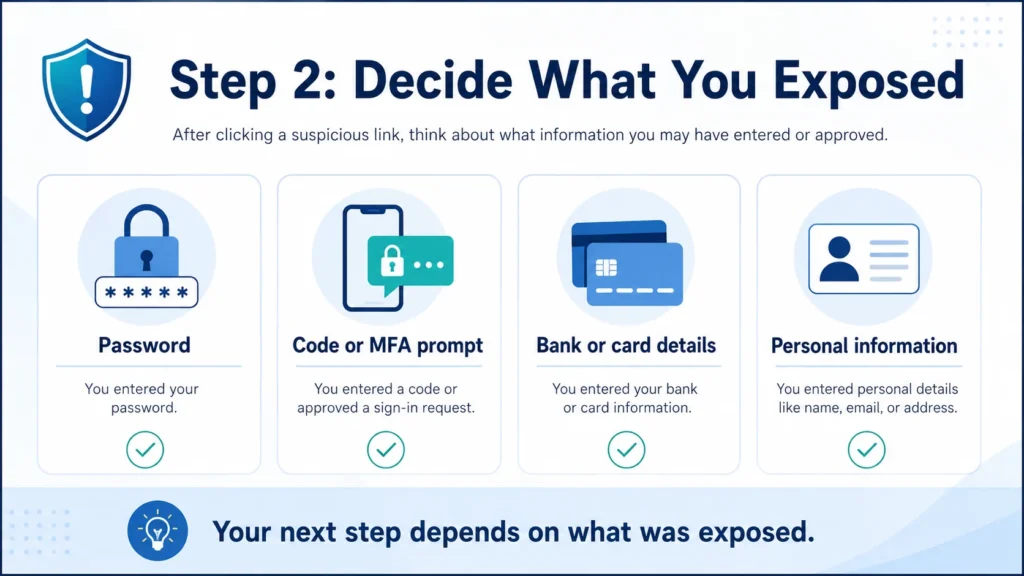
Write down what happened while it is fresh. Include the time, the device used, the email or text sender, the link domain if you can safely copy it, and what information you entered. Do not click the link again to investigate. If you need the URL, copy it from the message preview or screenshot the message.
Important details to record include the account involved, whether you entered a password, whether you reused that password elsewhere, whether you entered a one-time code, whether you downloaded or opened a file, and whether any payment was made. This small notes file can save time when talking to a bank, IT team, platform support, or law enforcement report center.
| Information Exposed | Main Risk | Where to Act First |
| Email password | Account takeover, spam from your account, reset links exposed | Real email provider security settings |
| Bank or card info | Unauthorized transactions or account access | Bank or card issuer |
| Social Security number | Identity theft or new-account fraud | IdentityTheft.gov and credit monitoring steps |
| Work or school login | Business email compromise or cloud data exposure | IT/security team |
| One-time code or MFA approval | Session or account access risk | Account security page and support team |
Step 3: Change Password After Phishing Safely
If you entered a password, do not use the phishing page to fix it. Open a new browser tab, type the real website address yourself, or use the official app. Then change the password from the legitimate account security page. This is the safest way to change password after phishing because it avoids returning to the fake site.
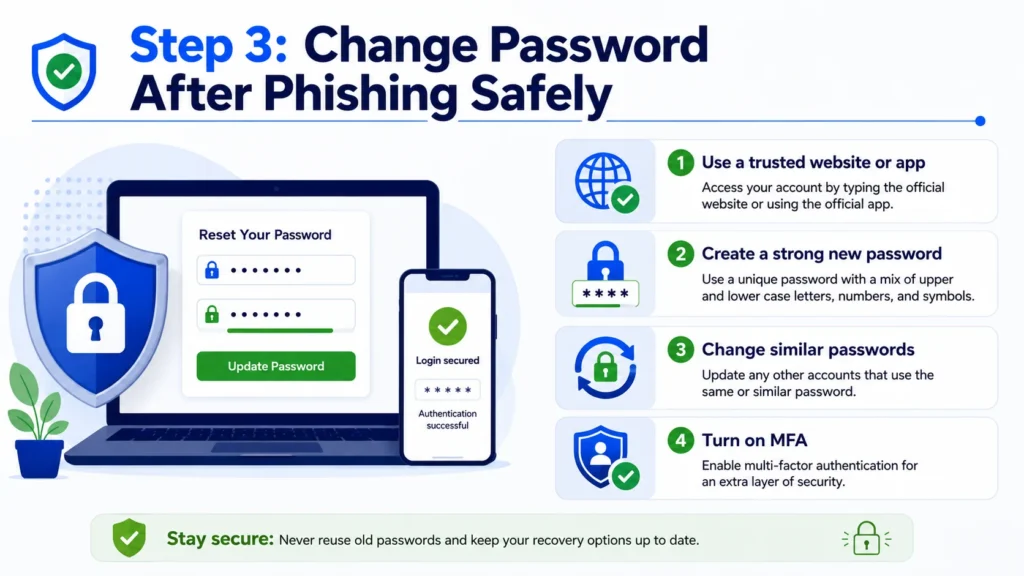
Start with the account you entered into the phishing page. Then change the same password anywhere else you reused it. Password reuse is dangerous because one stolen password can unlock multiple accounts. Create a unique password for every important account, especially email, banking, cloud storage, school, work, shopping, and tax-related accounts.
Microsoft recommends, for a hacked or compromised Microsoft account, clearing the PC of malware, changing or resetting the password, and checking account settings. If your incident involved Outlook, OneDrive, Microsoft 365, or a Microsoft account, use Microsoft’s official hacked account recovery steps instead of following advice from a random email.
A strong recovery password should be long, unique, and not based on your name, birthday, favorite team, or a previous password pattern. A password manager can help you create and store stronger passwords, but use a reputable provider and protect the password-manager account with strong authentication.
Step 4: Turn On Multi-Factor Authentication
After changing your password, add a second layer of protection. Multi-factor authentication, often called MFA or two-step verification, makes account takeover harder because the attacker needs more than a password. For personal accounts, this may be an authenticator app, security key, passkey, or verification prompt.
For a Microsoft account, Microsoft explains that two-step verification can require a security code from email, phone, or an authenticator app when signing in on a device that is not trusted. That extra step can reduce the risk if a password was exposed.
However, MFA is not a reason to relax. Some phishing attacks try to steal codes, trick users into approving login prompts, or capture active sessions. That is why you should never share a one-time code with someone who contacts you unexpectedly. If a page asks for a code after you clicked a suspicious link, stop and go directly to the real website instead.
If you use work or school accounts, ask the IT team whether sessions should be revoked, whether suspicious devices should be removed, and whether conditional access or sign-in protection should be reviewed. For home users, review backup email addresses, recovery phone numbers, and app passwords if your provider supports them.
Step 5: Check Account Activity and Security Settings
To protect account after phishing, do more than just reset the password. Account settings can reveal whether the attacker changed something to maintain access. Review recent sign-ins, connected devices, recovery information, inbox forwarding rules, automatic replies, saved payment methods, and linked apps.
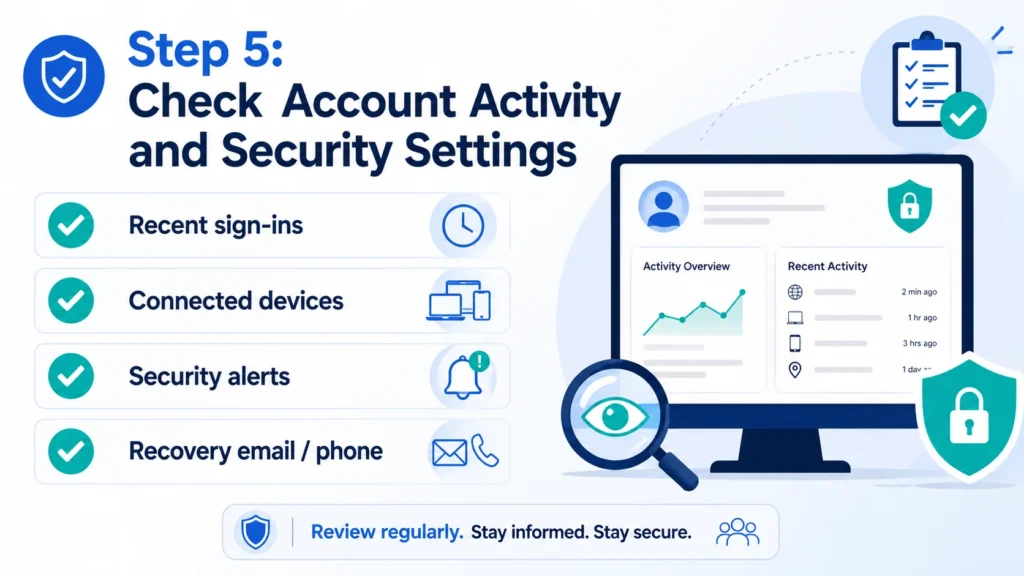
For email accounts, look for hidden forwarding rules. Attackers sometimes create rules that automatically forward incoming messages or hide security alerts. Also check sent mail. If your account was used to send phishing messages to friends, clients, classmates, or coworkers, send a warning from a clean device after the account is secured.
For Microsoft accounts, Microsoft’s recent activity guidance says suspicious activity should be reviewed from the account security area, and users can select secure-account options if something looks wrong. Use the official recent activity page guidance if you need to understand unusual sign-ins.
For social media and shopping accounts, review posts, messages, shipping addresses, gift-card purchases, connected apps, and saved cards. Attackers may not always steal money immediately. Sometimes they test access quietly or wait to use the account later.
Step 6: Scan Your Device and Update Software
If you only opened a phishing page and did not download anything, a device infection is less likely. But if you downloaded a file, installed an app, enabled a browser extension, or opened an attachment, scan your device. Use the security software already built into your operating system or a trusted security product. Do not install random “cleaner” software from pop-up ads.
Microsoft’s compromised-account recovery guidance starts with checking the PC for viruses or malware before changing the password, because a compromised device can capture new passwords too. This is especially important if the phishing page asked you to install a viewer, update a browser, open a document, or run a file.
Update your operating system, browser, and apps. Security updates help close known weaknesses that scammers may try to exploit. Remove browser extensions you do not recognize. On a phone, uninstall apps you do not remember installing and review app permissions for access to email, files, contacts, photos, or SMS.
If the device belongs to your employer, school, or another organization, do not try to handle it alone. Follow your organization’s incident-reporting process. Security teams may need to preserve evidence, isolate the device, and check other systems.
Step 7: Contact Your Bank or Card Issuer If Money Is Involved
If you entered debit-card, credit-card, bank-login, payment-app, or wire-transfer information, act immediately. Contact the bank, card issuer, payment app, or financial company using the number on the back of the card, the official app, or the official website. Do not call a number from the phishing message.
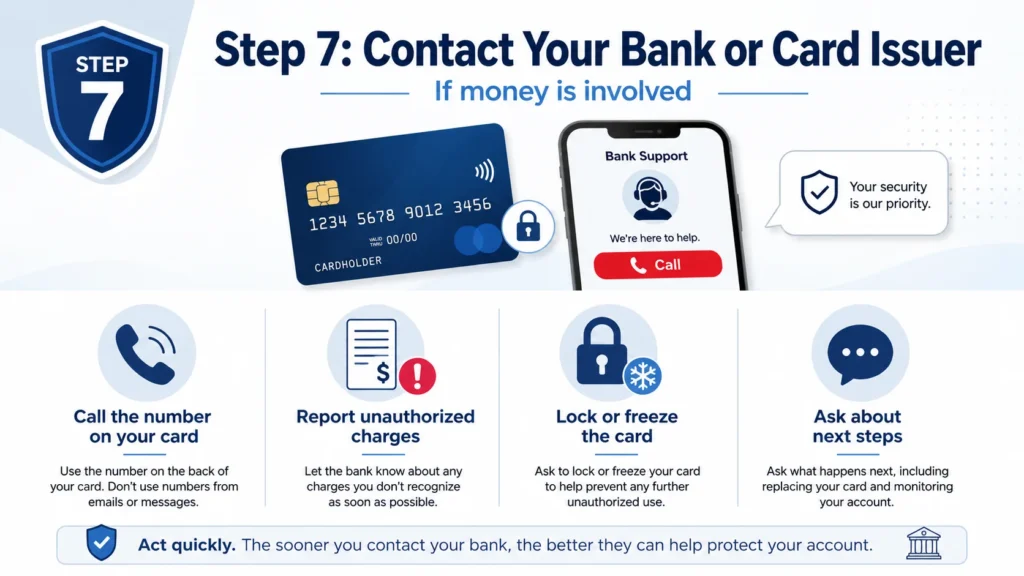
The FTC’s what to do if you were scammed guidance explains that people should report fraudulent transfers to the company behind the payment method and ask whether the transaction can be reversed. The sooner you contact the financial institution, the better your chance of limiting loss.
Ask whether you need a new card number, new online banking password, transaction dispute, account freeze, or fraud alert on the financial account. Review recent transactions and pending transfers. If you shared online banking credentials, tell the bank that login information may have been compromised, not only that a suspicious charge appeared.
If the scam involved cryptocurrency, gift cards, wire transfer, or peer-to-peer payment apps, recovery can be difficult. Still, report it quickly. Save wallet addresses, transaction IDs, receipts, screenshots, usernames, phone numbers, and messages. These details can help with reports to the platform, law enforcement, and the FBI IC3.
Step 8: Report the Phishing Scam
Reporting matters because phishing campaigns usually target more than one person. A report can help providers, fraud teams, and law enforcement understand what scammers are doing. You may not receive a personal investigation update, but the information can still help broader prevention. To report phishing scam details clearly, save the sender, link, time, screenshots, and any money or account information involved before submitting your report.
For general phishing attempts, the FTC says people can report phishing at ReportFraud.ftc.gov. The FTC also says phishing emails can be forwarded to the Anti-Phishing Working Group and phishing text messages can be forwarded to SPAM (7726). You can review the FTC’s official how to report phishing section for those details.
If the scam involved cyber-enabled crime, financial loss, business email compromise, identity theft, or an online fraud pattern, consider filing with FBI IC3. IC3 says it is the main intake form for a wide range of cyber-enabled frauds and scams, and reports can support investigative and intelligence purposes.
If the message arrived in Outlook, use the built-in reporting tools. Microsoft explains that Outlook users can select a suspicious message and use the Report > Report phishing option in Outlook.com. For mobile Outlook, Microsoft also provides steps to report junk or phishing messages. Start with Microsoft’s official Outlook phishing reporting guidance if your incident happened there.
For organizations, CISA encourages people to recognize and report phishing. Its Recognize and Report Phishing page can be useful for general awareness and workplace training. For suspicious emails, APWG also accepts reports from the public through its report phishing email page.
| Where to Report | Best For | Clean URL |
| FTC ReportFraud | Consumer fraud, scams, phishing attempts | ReportFraud.ftc.gov |
| FBI IC3 | Cyber-enabled crime, online fraud, financial loss, business email compromise | ic3.gov |
| IdentityTheft.gov | Identity theft or exposed SSN/personal identity information | IdentityTheft.gov |
| Microsoft Outlook report tools | Suspicious Outlook/Hotmail/Outlook mobile messages | Microsoft Outlook reporting |
| APWG | Forwarding suspicious phishing emails for analysis | APWG report phishing |
Step 9: Watch for Identity Theft and Follow-Up Scams
A phishing incident does not always end when you change the password. If you exposed personal information such as your Social Security number, date of birth, address, government ID, tax details, or medical insurance information, watch for identity theft signs.
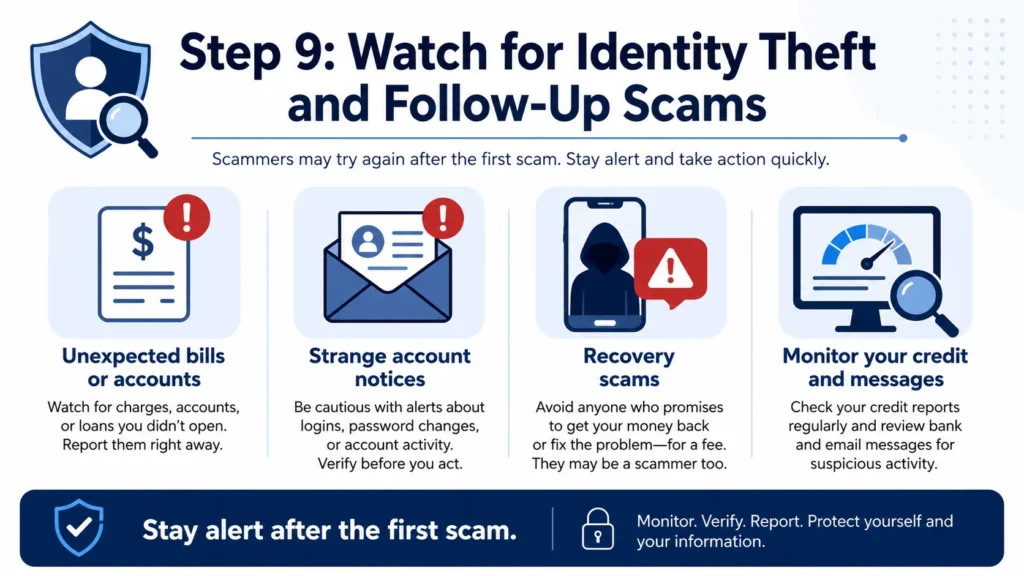
Use IdentityTheft.gov if you believe someone stole your identity or could use your information to open accounts. The site provides recovery steps based on the type of identity theft. It can also guide you through creating an FTC Identity Theft Report when needed.
Watch for unfamiliar credit inquiries, new accounts, debt-collection calls, tax notices, medical bills, password reset messages, and unusual mail. If you shared your SSN or identity documents, review your credit reports and consider fraud alerts or credit freezes depending on the situation. For financial accounts, continue checking statements for several weeks.
Also expect follow-up scams. Scammers sometimes contact victims again pretending to be support, law enforcement, recovery specialists, or “hackers” who can get money back for a fee. Be careful with anyone who asks for upfront payment, remote access, gift cards, cryptocurrency, or more verification codes.
Step 10: Build Safer Habits for Next Time
The goal is not to feel guilty forever. The goal is to reduce the chance it happens again. Phishing works because it uses pressure, familiarity, and timing. A message might look like a bank alert, school file, delivery problem, invoice, shared document, job offer, refund notice, or account-security warning.
Build one simple rule: when a message asks you to sign in, pay, download, verify, or share sensitive information, do not use the message link. Open a new browser tab and go to the official site yourself. Microsoft’s phishing protection guidance recommends not clicking suspicious links or attachments and contacting the organization through official channels if a message might be legitimate.
Use unique passwords, turn on MFA, keep recovery information updated, update devices, and keep backups of important files. For families, teach children and older relatives that urgent messages are not always real. For students, be careful with scholarship, school login, and shared-document messages. For small businesses, train employees to report suspicious messages quickly instead of hiding mistakes.
Finally, save a recovery checklist somewhere safe. When something stressful happens, people forget steps. A simple checklist can help you move from panic to action in minutes.
- Why Is Roland Garros So Hard to Win? Full Guide
- Are AI voices safe for YouTube monetization
- Realistic Indian Accent AI Voices for Free: 3 Best Tools
- Generative AI Uses and Risks: 11 Real-Life Lessons for Beginners
- What is Generative AI? 12 Powerful Basics for Beginners
Quick Recovery Checklist –
- Close the suspicious page and stop interacting with the message.
- Do not enter more passwords, codes, card details, or personal information.
- If a file was downloaded, do not open it and scan the device.
- Change the affected password from the real website or app.
- Change reused passwords on other accounts.
- Turn on MFA or stronger sign-in protection.
- Review recent sign-ins, devices, forwarding rules, and linked apps.
- Contact your bank or card issuer if financial information was exposed.
- Report the scam to FTC, IC3, the email provider, or the organization impersonated.
- Use IdentityTheft.gov if identity information may have been stolen.
Source List –
| Source | Clean URL |
| FTC Phishing Guidance | https://consumer.ftc.gov/articles/how-recognize-avoid-phishing-scams |
| FTC What To Do if You Were Scammed | https://consumer.ftc.gov/articles/what-do-if-you-were-scammed |
| ReportFraud.ftc.gov | https://reportfraud.ftc.gov/ |
| IdentityTheft.gov | https://www.identitytheft.gov/ |
| Microsoft Hacked Account Recovery | https://support.microsoft.com/en-us/accounts-billing/manage/how-to-recover-a-hacked-or-compromised-microsoft-account |
| Microsoft Two-Step Verification | https://support.microsoft.com/en-us/accounts-billing/security/how-to-use-two-step-verification-with-your-microsoft-account |
| Microsoft Report Phishing in Outlook | https://support.microsoft.com/en-us/office/phishing-and-suspicious-behavior-in-outlook-0d882ea5-eedc-4bed-aebc-079ffa1105a3 |
| CISA Recognize and Report Phishing | https://www.cisa.gov/secure-our-world/recognize-and-report-phishing |
| FBI IC3 | https://www.ic3.gov/ |
| APWG Report Phishing | https://apwg.org/reportphishing |
Conclusion
If you clicked a phishing link, the best response is calm, quick, and organized. Do not keep interacting with the page. Identify what you exposed, change affected passwords through the real website, turn on MFA, check account activity, scan your device if needed, and contact your bank or IT team when money or work data may be involved.
The answer to clicked phishing link what to do is not one single button. It is a sequence of smart recovery steps. If you shared identity information, use IdentityTheft.gov. If money or cyber-enabled fraud is involved, report it to FTC or FBI IC3. If the message came through Outlook or a work system, report it inside the platform or to your organization’s security team.
Most importantly, do not let embarrassment keep you silent. Reporting early can help protect your accounts and may help stop the same phishing campaign from reaching someone else.
FAQ –
1. What should I do first if I clicked a phishing link?
Stop interacting with the page immediately. Do not enter more information, close the page, and identify whether you entered a password, downloaded a file, shared a code, or provided payment or identity details.
2. Is clicking a phishing link always dangerous?
Not always. Clicking a link without entering information or downloading anything may be lower risk, but you should still close the page, avoid further interaction, and watch for suspicious account activity.
3. Should I change my password after clicking a phishing link?
Yes, if you entered your password or think your account may be exposed. Change the password through the real website or official app, not through the suspicious link, and change the same password anywhere else you reused it.
4. What if I entered my bank or credit card information?
Contact your bank, card issuer, or payment provider immediately using the official number, app, or website. Ask about blocking the card, disputing charges, reversing transfers, or protecting the account.
5. Where should I report a phishing scam in the USA?
You can report consumer fraud and phishing to ReportFraud.ftc.gov. If the scam involved cyber-enabled crime, financial loss, or online fraud, you can also file a report with FBI IC3 at ic3.gov.
6. What if I shared my Social Security number or identity documents?
Use IdentityTheft.gov for step-by-step recovery guidance. You may also need to monitor credit reports, consider fraud alerts or credit freezes, and watch for new accounts or bills you do not recognize.
7. How can I protect my account after phishing?
Change the affected password, turn on multi-factor authentication, review recent sign-ins, remove unknown devices or connected apps, check email forwarding rules, and report the incident to the platform or organization involved.
- Protect Outlook OneDrive from Phishing: 9 Smart Safety Steps
- Clicked Phishing Link What to Do: 10 Recovery Steps
- How to Spot Phishing Emails: Red Flags & Examples
- FBI Alert Outlook OneDrive: Phishing Scam Explained
- What Is Phishing? Meaning, Examples & Safety Tips
- How to Improve Your Credit Score in the USA: Complete Guide
- Why Is Roland Garros So Hard to Win? Full Guide
- Roland Garros Winners List: Champions, Records & Legends
- Why Is Roland Garros Played on Clay? Court Guide
- French Open vs Roland Garros: Are They the Same Tournament?
- Roland Garros Meaning, History & Clay Court Explained
- Guzman y Gomez vs Chipotle: Menu, Taste, and Value Compared
- Chipotle Bowl vs Burrito: Which One Is Healthier?
- Chipotle Nutrition Guide: Calories, Protein & Smart Orders
- Healthiest Thing to Eat at Chipotle: Best Orders Explained
- Chipotle Mexican Grill Menu Explained: Best Items to Try
- Social Security Payment Schedule 2026: Dates by Birth Date
- Social Security COLA 2026 Explained: What Changed This Year
- Kyle Busch Pneumonia Sepsis: Cause of Death Explained
- Why Are Social Security Checks Late in May 2026? (The Real Truth)
- Antarctica From Space: 5 Climate Signals to Watch
- Ebola Outbreak 2026: Bundibugyo Virus Explained & Related Topic
- Robert Redfield: Biography, CDC Role, COVID-19 Legacy
- Types of Yoga: 30 Powerful Styles Explained
- What is Cloud Storage ? 7 Best Basics
4 thoughts on “Clicked Phishing Link What to Do: 10 Recovery Steps”