
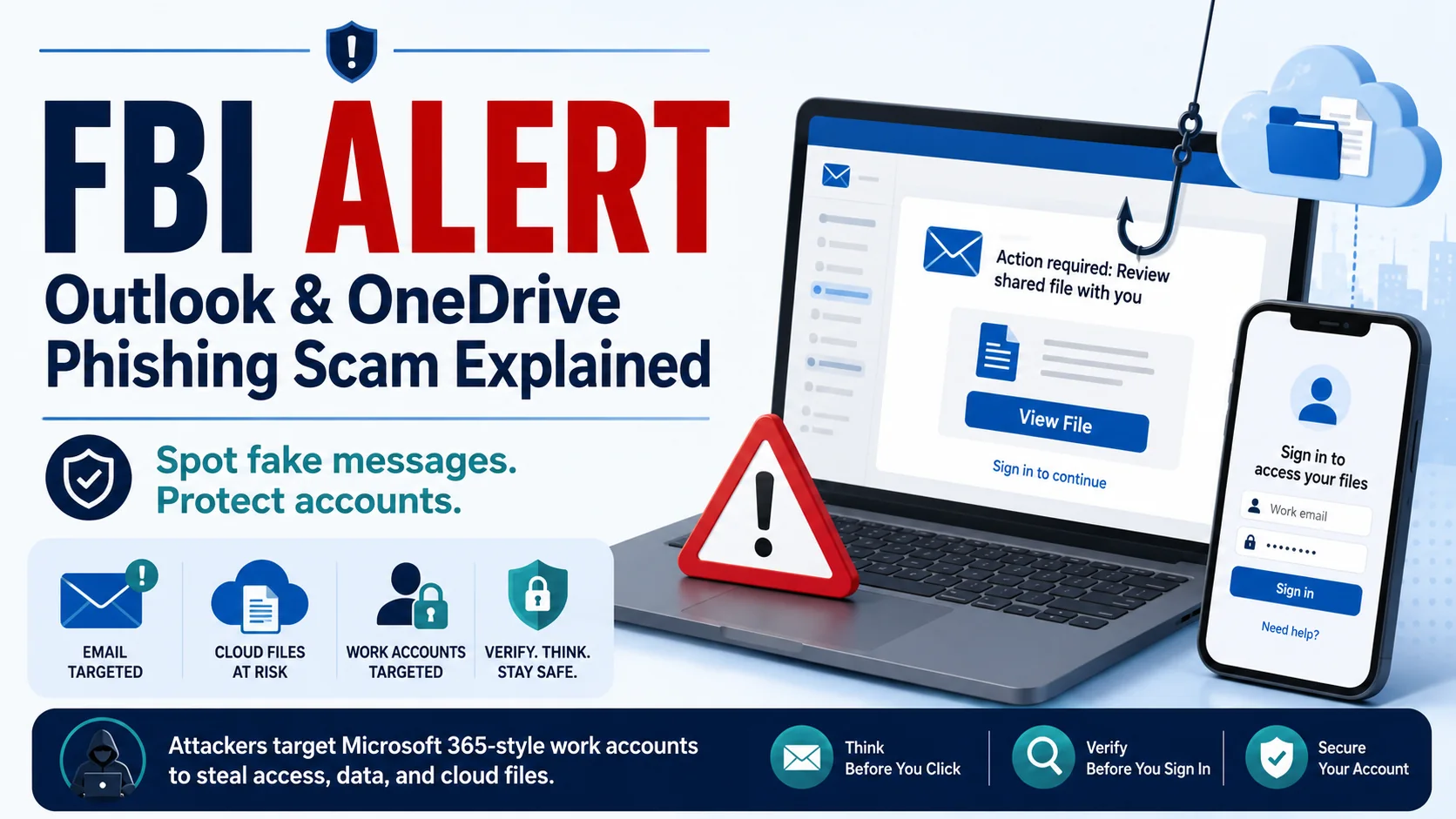
FBI alert Outlook OneDrive searches are rising because the FBI IC3 warned about Kali365 phishing, a phishing-as-a-service threat connected to Microsoft 365 account access. In simple terms, attackers may send fake Outlook, Teams, or OneDrive-style messages that push users toward links, document prompts, or authorization codes. The safest habit is simple: do not click in a rush, do not enter codes from unexpected messages, and verify the request through the official app or website first.
Cyber Safety Note
This article is for educational and online-safety purposes only. It is not legal advice, incident-response advice, or a substitute for your organization’s cybersecurity team. If a work, school, or business account may be compromised, report it to your IT administrator or security team immediately.
- FBI Alert Outlook OneDrive: What Happened?
- What Is Kali365 Phishing?
- Why Outlook, OneDrive, and Microsoft 365 Accounts Are Targeted
- How This Scam Can Look in Real Life
- Why Token and Device-Code Phishing Feels Different
- Red Flags to Watch For
- What Outlook and OneDrive Users Should Do
- What Small Businesses, Students, and Families Should Do
- What To Do If You Already Clicked
- How to Report Suspicious Activity
- Quick Safety Checklist –
- Source List –
- Conclusion –
- FAQ –
FBI Alert Outlook OneDrive: What Happened?
The FBI IC3 warning explained that Kali365 is a phishing-as-a-service platform first seen in April 2026. According to the FBI, the platform can help cyber threat actors obtain Microsoft 365 OAuth tokens and gain access to targeted Microsoft 365 environments. For everyday readers, that means the risk is not just a fake email. The bigger concern is account access that can affect email, cloud files, shared documents, and workplace tools.
This is why the topic matters for people who use Outlook, OneDrive, Teams, SharePoint, or other Microsoft 365 tools. A single account can connect to messages, files, calendars, contacts, and business conversations. If an attacker tricks someone into approving the wrong prompt, entering the wrong code, or opening a fake document link, the result can be more serious than a normal spam email.
At the same time, readers should avoid panic. Not every Outlook message or OneDrive link is dangerous. The real goal is to learn how attackers imitate trusted services, how to slow down before clicking, and how to verify account requests safely.
For InfoJustify readers, this article turns a current FBI cyber alert into a practical safety guide. It explains what the alert means, why Microsoft 365 phishing remains a recurring risk, and what US users can do before they trust a sign-in page, shared document, or security code request.
What Is Kali365 Phishing?
Kali365 phishing refers to the FBI-described phishing-as-a-service threat connected to Microsoft 365 account targeting. Phishing-as-a-service means attackers may use a ready-made platform instead of building every part of the scam from scratch. The FBI said Kali365 lowers the barrier for less-technical attackers by offering campaign tools and token-capture capabilities.
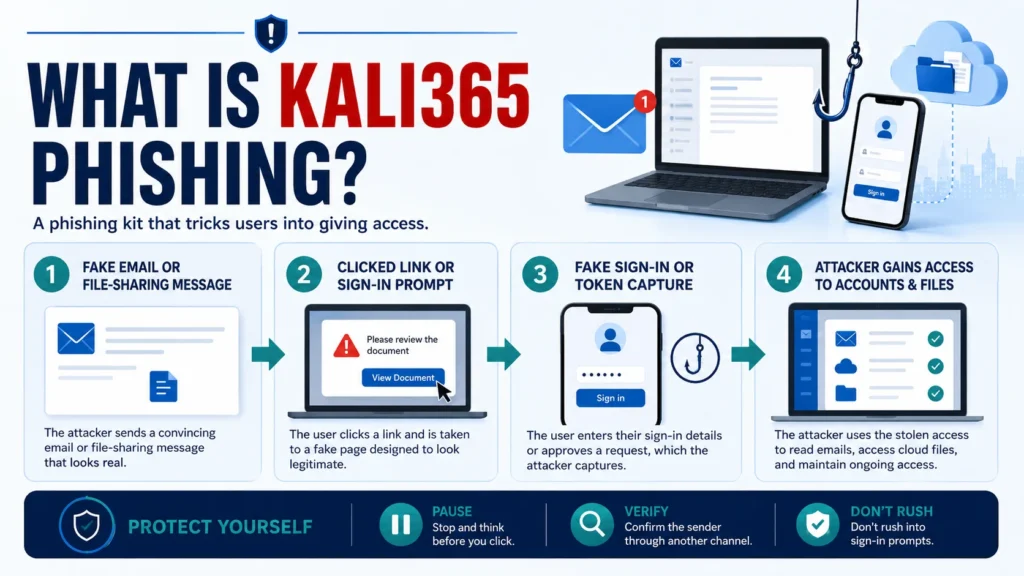
This does not mean a regular user needs to understand every technical detail. The important point is that modern phishing can go beyond a simple password-stealing page. Some attacks try to capture authorization tokens or trick users into approving a sign-in flow. That can make the attack harder to notice because the scam may look like a normal cloud-document or account-verification process.
A common phishing scam starts with a message that looks like it came from a trusted source. The FTC phishing guidance explains that scammers use email or text messages to try to steal passwords, account numbers, Social Security numbers, or other sensitive information. In an Outlook or OneDrive context, the lure may be a fake shared file, invoice, voicemail, meeting note, or security alert.
The safest mindset is not “never use cloud links.” The safer mindset is: verify before you trust. If a document, code, login prompt, or file share arrives unexpectedly, pause and confirm it through a trusted channel before taking action.
Why Outlook, OneDrive, and Microsoft 365 Accounts Are Targeted
Outlook and OneDrive are attractive targets because they often sit at the center of personal, school, and workplace communication. An Outlook account may contain invoices, password reset emails, private conversations, customer messages, or internal documents. OneDrive may hold shared files, tax records, contracts, class projects, or business documents.
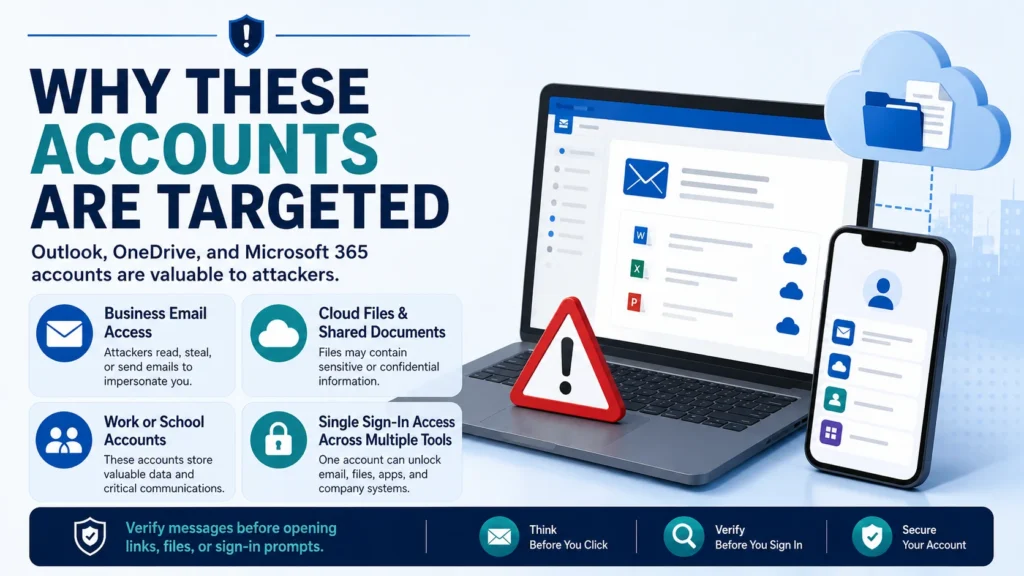
For a scammer, access to a cloud account can be more valuable than access to one message. A compromised account may let an attacker read email threads, send messages from a trusted identity, search for sensitive files, or launch more scams against coworkers, classmates, friends, or customers.
This is also why an Outlook phishing scam can feel convincing. The message may appear to come from someone familiar. It may copy workplace language. It may mention a document, invoice, meeting, delivery, password expiration, or security check. Because many people are used to opening files quickly, attackers use that routine against them.
For businesses and schools, the risk can extend across multiple tools. CISA describes Microsoft Defender for Office 365 as a cloud-based defense suite for prevention, detection, investigation, and response. That is a reminder that organizations should not treat email security as one isolated setting; it is part of a broader cloud-security habit.
| Targeted Area | Why Attackers Care | Safe User Habit |
| Outlook email | Email often contains trusted conversations, resets, invoices, and contact lists. | Verify unexpected links or attachments before opening them. |
| OneDrive files | Shared files can look familiar and may push people toward fake sign-in prompts. | Open cloud files from the official app or site when possible. |
| Microsoft 365 account | One account may connect email, files, Teams, calendars, and business tools. | Use strong MFA and report suspicious prompts quickly. |
| Work or school identity | A trusted account can be used to scam other people inside the same network. | Alert IT or your admin if anything looks wrong. |
- Protect Outlook OneDrive from Phishing: 9 Smart Safety Steps
- Clicked Phishing Link What to Do: 10 Recovery Steps
- How to Spot Phishing Emails: Red Flags & Examples
- What Is Phishing? Meaning, Examples & Safety Tips
How This Scam Can Look in Real Life
A phishing message may not say “I am a scam.” It may look boring, routine, and professional. That is why people fall for it. A fake OneDrive phishing email may say a document was shared with you. A fake Outlook message may say your mailbox is almost full. A fake security alert may ask you to verify your account before access expires.
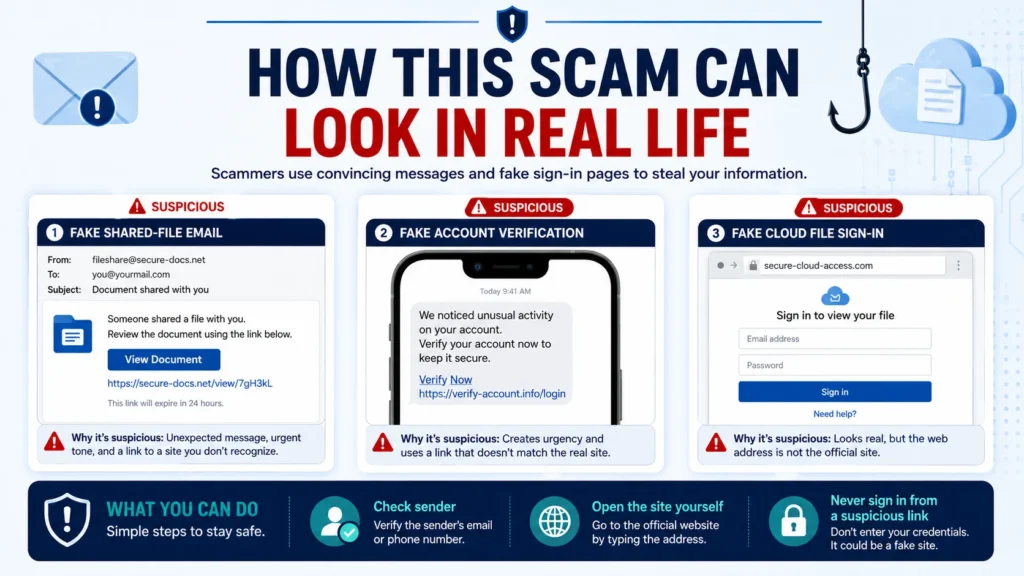
Here is a practical example. You receive an email that says, “A secure file has been shared with you.” The message uses a normal business tone. The button says “Open Document.” When you click, the page asks you to sign in, approve a device code, or enter a verification code. If the request was not expected, that is your warning moment.
Microsoft advises users to avoid clicking links or attachments in suspicious emails or Teams messages, and to verify requests by going directly to the organization’s website or contacting the sender through another method. You can read Microsoft’s phishing protection guidance for user-facing safety steps.
The FTC gives similar consumer advice: do not give personal or financial information in response to unexpected requests. Use known websites, official phone numbers, or trusted contacts instead of the contact details inside the suspicious message.
| Message Claim | Why It Is Risky | Better Response |
| “Your OneDrive document is waiting.” | The link may lead to a fake sign-in page. | Open OneDrive directly and check shared files there. |
| “Enter this code to continue.” | Unexpected codes can be part of account takeover attempts. | Stop and verify through the official account portal. |
| “Your Outlook storage will be deleted today.” | Urgency can push rushed clicks. | Check account status from the official app or website. |
| “This invoice needs immediate review.” | Business lures can hide malicious attachments. | Confirm with the sender through a known contact method. |
Why Token and Device-Code Phishing Feels Different
Traditional phishing often asks for a username and password. Token or device-code phishing can feel different because the attacker may try to get the user to approve a process that looks like a real login flow. The FBI alert specifically mentions OAuth token capture in connection with Kali365. That matters because tokens can help maintain access without repeatedly asking for a password.
For everyday users, the exact technical terms are less important than the behavior. If you receive an unexpected device-code prompt, sign-in approval, file-access request, or shared-document link, treat it with caution. Do not approve a login you did not start. Do not enter codes from a message you did not request.
Important: multi-factor authentication is still valuable. But modern phishing can try to trick users into helping the attacker complete a sign-in flow. That is why security habits need both tools and awareness. MFA helps, but clicking, approving, or entering codes without thinking can still create risk.
A practical rule for non-technical readers is simple: if you did not start the sign-in, do not approve the sign-in. If you are unsure, close the message and open the official website or app yourself.
Red Flags to Watch For
The best protection often starts before the click. A phishing message usually creates pressure. It may say your file will expire, your account will close, your storage is full, your paycheck document is ready, or your password must be verified. The goal is to make you react before you think.
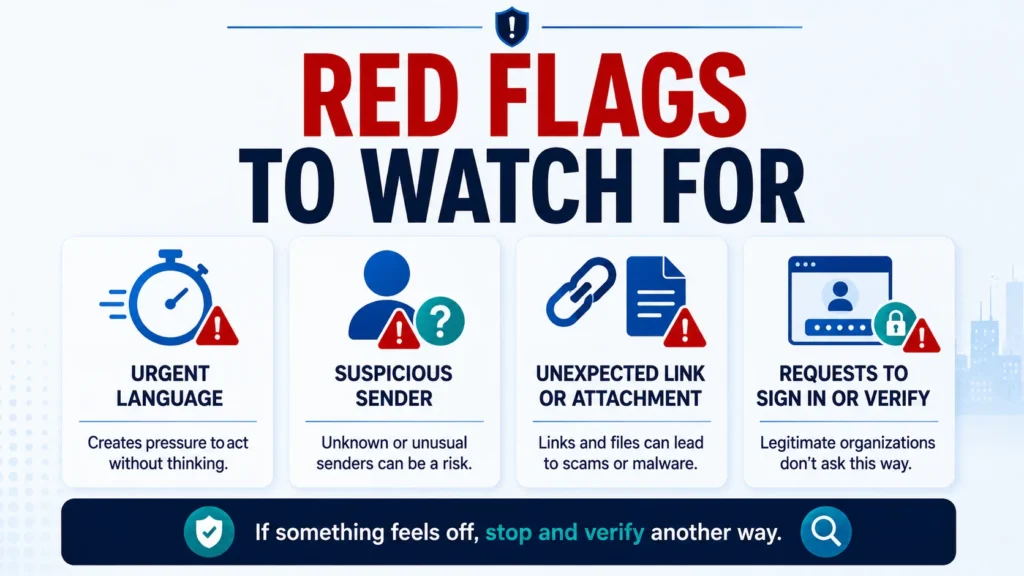
Microsoft’s online scam safety guidance recommends looking closely at urgent messages and checking the sender’s address. It also warns against opening unexpected links or attachments, even when a message appears to come from someone you trust.
You should be extra careful when a message asks for passwords, PINs, verification codes, or account recovery information. Legitimate organizations usually do not need your password or code through an email link. If a message asks you to “confirm” sensitive details, it deserves careful verification.
- Urgent language: “act now,” “final warning,” “account will be closed,” or “document expires today.”
- Suspicious sender: misspelled domains, unfamiliar addresses, or display names that do not match the real sender.
- Unexpected file link: a OneDrive, SharePoint, or document link you were not expecting.
- Fake sign-in page: a page asking for your email, password, or code after you clicked a message link.
- Code request: any request to enter or approve a code when you did not start the sign-in yourself.
What Outlook and OneDrive Users Should Do
If you use Outlook or OneDrive, your goal is not to fear every message. Your goal is to build a safer routine. The first step is to avoid clicking directly from suspicious messages. Open your browser or official app yourself, sign in normally, and check whether the file, alert, or request actually exists.
If a message looks like it came from a coworker, classmate, client, or friend, confirm it outside the same email thread. Call, text, message through a known channel, or ask in person. If the sender’s account has been compromised, replying to the same email thread may only reach the attacker.
Outlook also has tools for reporting suspicious messages. Microsoft’s Outlook guidance explains that users can select a message and use the Report option to report phishing. Review the official phishing and suspicious behavior in Outlook page for current interface steps because Microsoft may update Outlook menus over time.
For OneDrive links, avoid opening documents from unexpected emails. Go to OneDrive directly, check shared files, and confirm with the sender before opening. If your organization uses Microsoft 365, follow your IT team’s instructions instead of trying to handle a workplace incident alone.
| Do This | Avoid This |
| Open Outlook, OneDrive, or Microsoft 365 directly from your saved app or official site. | Do not sign in through a link from a suspicious email. |
| Verify unexpected documents with the sender through another method. | Do not assume a message is safe only because it uses a familiar name. |
| Report suspicious messages using built-in reporting tools when available. | Do not forward suspicious links to coworkers without warning. |
| Use MFA and keep recovery information current. | Do not approve sign-ins you did not start. |
What Small Businesses, Students, and Families Should Do
This topic is not only for large companies. Small businesses use Microsoft 365 for invoices, client files, payroll documents, and email. Students use Outlook or school accounts for assignments and portals. Families may use OneDrive for photos, documents, or shared files. A phishing mistake in any of these accounts can create stress.
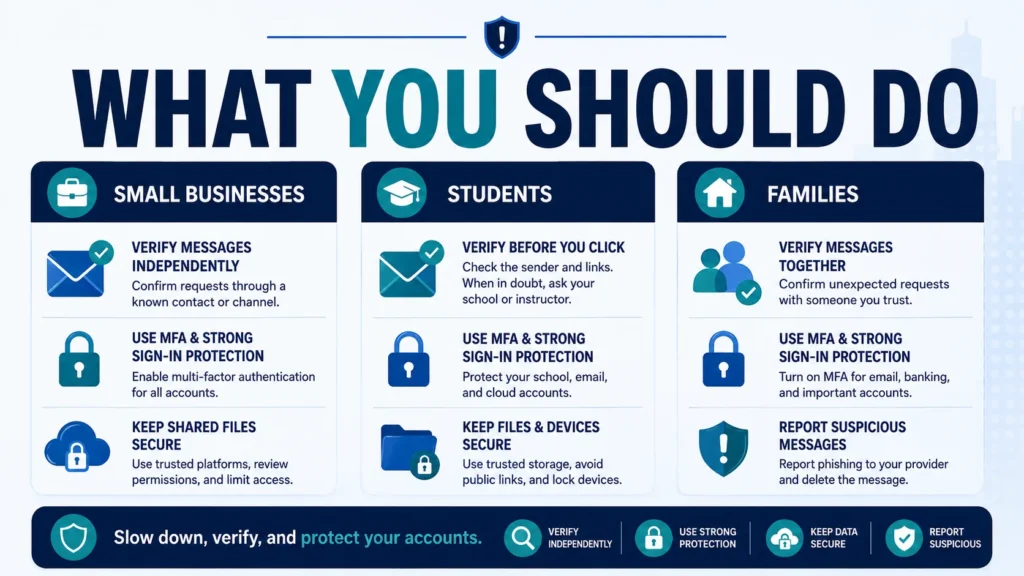
Small businesses should create a simple internal rule: verify payment changes, document links, and account-security requests through a second channel. A fake invoice or fake file-share message can lead to a bigger scam if employees are trained to click quickly.
Students and families should learn the same habit. If a message claims to be from a school, bank, delivery service, or cloud account, do not use the link inside the message first. Go directly to the known website or app. This habit protects more than Microsoft accounts; it works for most phishing scams.
The FTC’s how to avoid a scam advice is useful here: unexpected requests for personal or financial information should be treated with caution. Honest organizations usually do not pressure you to share sensitive information through surprise emails or texts.
What To Do If You Already Clicked
If you already clicked a suspicious link, do not panic. The next step depends on what happened. If you only opened the email and did not click, the risk may be lower. If you clicked a link but did not enter information, close the page and avoid interacting further. If you entered a password, approved a sign-in, or shared a code, act quickly.
Start by changing your password from the official account page, not from the suspicious message. Review recent account activity if available. Sign out of other sessions if your account provides that option. If the account belongs to work or school, contact your IT administrator immediately because they may need to revoke sessions, review logs, reset credentials, or take additional steps.
If you shared financial or identity information, watch related accounts closely. A phishing message may be part of a larger scam. The FTC explains that scammers may try to steal passwords, account numbers, or Social Security numbers and use that information to access accounts or sell it to other scammers.
The key is speed and documentation. Save the suspicious message if your IT team or reporting channel needs it. Take screenshots only if it is safe to do so. Write down what you clicked, what you entered, and when it happened. Clear notes can help your administrator, bank, school, or reporting agency respond faster.
- Stop interacting with the message or website.
- Do not enter more information or approve any new sign-in request.
- Change the password from the official website or app.
- Turn on or review MFA settings where available.
- Check recent account activity and sign out of sessions if possible.
- Report the message to your email provider, workplace, school, or official reporting channel.
How to Report Suspicious Activity
Reporting helps. If a message is suspicious, use your email provider’s report button when available. In Outlook, the reporting option may appear in the message list or ribbon depending on your version. For workplace or school accounts, follow the reporting process your organization provides.
For broader cyber-enabled crime, the FBI’s Internet Crime Complaint Center is the central place to file reports. IC3 says it accepts a variety of complaints involving cyber-enabled fraud, scams, and cybercrime, even if you are unsure whether the complaint qualifies.
For consumer phishing attempts, the FTC also gives reporting guidance. If you receive a phishing email, text, or scam message, report it through the proper channel and avoid clicking further. Reporting may not instantly solve your case, but it helps official agencies and providers track scam patterns.
Do not report through random links claiming to be the FBI or recovery services. Go directly to known official websites. Some scammers imitate reporting pages too, so clean official URLs matter.
- Generative AI Uses and Risks: 11 Real-Life Lessons for Beginners
- How to Improve Your Credit Score in the USA: Complete Guide
- What is Generative AI? 12 Powerful Basics for Beginners
- What is AI? 11 Powerful Basics Every Beginner Should Know
Quick Safety Checklist –
Use this quick checklist before trusting any Outlook, OneDrive, or Microsoft 365 message:
- Was I expecting this message or file?
- Does the sender address match the person or organization exactly?
- Is the message pressuring me to act immediately?
- Is the link asking me to sign in or enter a code?
- Can I open the app or website directly instead of using the message link?
- Can I verify with the sender through another trusted channel?
- If this is a work or school account, should I report it to IT first?
If even one answer feels wrong, stop. Open the official site yourself, contact the sender another way, or report the message. A thirty-second pause can prevent a major account problem.
Source List –
| Source | Clean URL |
| FBI IC3 – Kali365 Phishing-as-a-Service Kit Hijacks Microsoft 365 Access Tokens | https://www.ic3.gov/PSA/2026/PSA260521 |
| FBI IC3 – Report Cyber-Enabled Crime | https://www.ic3.gov/ |
| FTC – How To Recognize and Avoid Phishing Scams | https://consumer.ftc.gov/articles/how-recognize-avoid-phishing-scams |
| FTC – How To Avoid a Scam | https://consumer.ftc.gov/articles/how-avoid-scam |
| Microsoft Support – Protect Yourself from Phishing | https://support.microsoft.com/en-us/security/protect-yourself-from-phishing |
| Microsoft Support – Phishing and Suspicious Behavior in Outlook | https://support.microsoft.com/en-us/office/phishing-and-suspicious-behavior-in-outlook-0d882ea5-eedc-4bed-aebc-079ffa1105a3 |
| Microsoft Support – Protect Yourself from Online Scams and Attacks | https://support.microsoft.com/en-us/security/protect-yourself-from-online-scams-and-attacks |
| CISA – Microsoft Defender for Office 365 | https://www.cisa.gov/resources-tools/services/m365-defender-office |
Conclusion –
The FBI alert Outlook OneDrive topic is important because it shows how phishing is changing. Today’s scams are not always simple fake password pages. Some campaigns try to imitate cloud documents, workplace messages, device-code prompts, and Microsoft 365 sign-in flows.
The FBI IC3 warning about Kali365 phishing should not make users afraid of Outlook or OneDrive. These tools are legitimate and widely used. The real lesson is that attackers target familiar tools because people trust them and use them quickly.
The best protection is a practical routine: pause before clicking, verify unexpected links, avoid entering codes from surprise messages, use official apps or websites, report suspicious messages, and contact IT quickly when a work or school account may be involved.
For US readers, the safest approach is not panic. It is awareness. If a message pushes urgency, asks for a password or code, or sends you to a sign-in page from an unexpected link, stop and verify another way before you trust it.
FAQ –
1. What is the FBI alert about Outlook and OneDrive?
The FBI alert warns about Kali365, a phishing-as-a-service platform that can target Microsoft 365 environments and obtain OAuth tokens. For everyday users, the key lesson is to be careful with unexpected Outlook messages, OneDrive document links, sign-in prompts, and device-code requests.
2. Does this mean every Outlook or OneDrive message is dangerous?
No. Outlook, OneDrive, and Microsoft 365 are widely used legitimate tools. The risk comes from fake messages, fake sign-in pages, malicious links, and suspicious authorization prompts that pretend to involve these tools.
3. What is Kali365 phishing?
Kali365 phishing refers to the FBI-described phishing-as-a-service threat that can help attackers capture Microsoft 365 access tokens and gain access to accounts or environments. Users should avoid entering codes or approving sign-ins from unexpected messages.
4. How can I spot an Outlook phishing scam?
Look for urgent language, unexpected attachments, strange sender addresses, suspicious links, requests for passwords or verification codes, and messages that push you to sign in through a link instead of going directly to the official site.
5. What should I do if I clicked a OneDrive phishing email?
Stop interacting with the message, do not enter more information, change your password from the official account page, review recent account activity, sign out of other sessions if available, report the message, and contact your workplace or school IT team if the account is managed by them.
6. Where should I report phishing or cybercrime?
You can report phishing attempts to the FTC, use the reporting tools available in Outlook or your email provider, and file cyber-enabled crime reports with the FBI Internet Crime Complaint Center at IC3.gov when appropriate.
- Protect Outlook OneDrive from Phishing: 9 Smart Safety Steps
- Clicked Phishing Link What to Do: 10 Recovery Steps
- How to Spot Phishing Emails: Red Flags & Examples
- FBI Alert Outlook OneDrive: Phishing Scam Explained
- What Is Phishing? Meaning, Examples & Safety Tips
- Are AI voices safe for YouTube monetization
- Realistic Indian Accent AI Voices for Free: 3 Best Tools
- ElevenLabs Free Alternatives for Emotional Voices: 3 Picks
- Best Free AI Voice Generators for Faceless YouTube Shorts
- Top 5 Free AI Voice Generator Realistic Tools
- Free AI Video Generators Without Watermark: 2026 Truth
- AI vs Machine Learning: Powerful 2026 Career Truth
- Generative AI Uses and Risks: 11 Real-Life Lessons for Beginners
- What is Generative AI? 12 Powerful Basics for Beginners
- What is AI? 11 Powerful Basics Every Beginner Should Know
3 thoughts on “FBI Alert Outlook OneDrive: Phishing Scam Explained”